The Complete Trading Manual
The Complete Trading Manual
Your Comprehensive Guide to AI-Powered Market Intelligence
TABLE OF CONTENTS
PART ONE: FOUNDATIONS
- Welcome to GilSignal Pro
- System Architecture & Requirements
- Installation & First Launch
- Understanding the Interface
PART TWO: CONFIGURATION
- Initial Settings & Preferences
- Connecting AI Providers
- Data Sources & Proxy Settings
- Voice & Language Configuration
- Theme & Display Customization
PART THREE: CORE TRADING FEATURES
- The Forecast Tab
- Smart Trade Advisor
- Market Scanner
- Paper Trading
- Trade Manager
PART FOUR: ADVANCED ANALYSIS
- Multi-Timeframe Analysis
- Correlation Matrix
- Economic Calendar
- News Intelligence Engine
- AI Chart Analysis
PART FIVE: AUTOMATION & STRATEGIES
- Automation & Expert Advisors
- AI Auto-Trading Engine
- Backtester
- Strategy Tester
- Custom Script Editor
PART SIX: PORTFOLIO & RISK MANAGEMENT
- Investments Calculator
- Trade Journal
- Risk Management Tools
- Position Sizing Calculator
PART SEVEN: BROKER INTEGRATION
- OANDA Connection
- Alpaca Integration
- Binance Setup
- Interactive Brokers
- cTrader & MT4/5
PART EIGHT: DATA MANAGEMENT
- History & Export Features
- Compare Engine
- Market Watch
- Order Book Analysis
PART NINE: ADMINISTRATION
- User Roles & Access Control
- Tab Management
- Security Settings
PART TEN: APPENDICES
- Glossary of Terms
- Keyboard Shortcuts
- Troubleshooting Guide
- FAQ
- Quick Reference Cards
PART ONE: FOUNDATIONS
Chapter 1: Welcome to GilSignal Pro
What is GilSignal Pro?
GilSignal Pro is an AI-powered market intelligence platform that combines live market data with advanced artificial intelligence to help you make better trading decisions. Think of it as having a team of expert analysts working for you 24/7, each providing independent opinions on where markets are heading.
What Makes GilSignal Pro Different?
Unlike traditional trading platforms that only show you charts and basic indicators, GilSignal Pro:
- Uses Multiple AI Models– Instead of relying on one algorithm, it runs your forecasts through multiple AI providers (OpenAI, Google Gemini, Claude, etc.) and shows you each one’s independent opinion.
- Provides Real Data– All price information comes from live sources like Yahoo Finance, CoinGecko, and ExchangeRate-API. No more trading on simulated data.
- Speaks Your Language– With 40+ languages supported, the app can read forecasts aloud in your native language.
- Connects to Real Brokers– When you’re ready, you can execute trades directly on OANDA, Alpaca, Binance, and other brokers.
- Auto-Saves Everything– Every forecast, every analysis, every trade is automatically saved to your History tab.
Who Is This For?
GilSignal Pro is designed for:
- Complete Beginners– The Guide tab explains every term in plain English
- Intermediate Traders– Use multiple AI opinions to confirm your analysis
- Advanced Traders– Automate strategies, backtest ideas, and connect to real brokers
- Quantitative Traders– Export Python scripts and build your own systems
Version v26 Key Features
This manual covers GilSignal Pro version 26, which includes:
- Smart Advisor Auto-Run Timer– Set custom intervals (10s to 24hr) for automatic analysis
- Price Alert System– Get notified when prices hit your targets
- Group Run Dashboard– Analyse multiple markets at once with colour-coded results
- Multilingual Voice Summaries– 40 languages with native trade phrases
- Fixed Tab Layout– All 23 tabs now render correctly
- Auto-Save to History– Every run saves automatically
Chapter 2: System Architecture & Requirements
How GilSignal Pro Works
GilSignal Pro is an advance algorithm put together that runs entirely in your browser. There’s no server to install, no database to configure – just open the file/go to “gil50.2h2.uk” and start trading.
text
┌─────────────────────────────────────────────────────────┐
│ YOUR BROWSER │
│ ┌─────────────────────────────────────────────────┐ │
│ │ GilSignal Pro HTML File │ │
│ │ ┌──────────┐ ┌──────────┐ ┌──────────┐ │ │
│ │ │ Trading │ │ AI │ │ Broker │ │ │
│ │ │ Engine │ │ Clients │ │ API │ │ │
│ │ └──────────┘ └──────────┘ └──────────┘ │ │
│ └─────────────────────────────────────────────────┘ │
│ │ │ │ │
│ ▼ ▼ ▼ │
│ ┌───────────┐ ┌───────────┐ ┌───────────┐ │
│ │ Yahoo │ │ OpenAI │ │ OANDA │ │
│ │ Finance │ │ Gemini │ │ Alpaca │ │
│ │ CoinGecko │ │ Claude │ │ Binance │ │
│ └───────────┘ └───────────┘ └───────────┘ │
└─────────────────────────────────────────────────────────┘
Data Flow
- Price Data→ Yahoo Finance / CoinGecko / ExchangeRate-API
- Technical Analysis→ Built-in TA engine calculates RSI, MACD, EMA, etc.
- AI Analysis→ Your configured AI providers analyse the data
- Consensus→ All AI opinions are combined into one forecast
- Execution→ You trade manually or connect to a broker
System Requirements
Minimum Requirements:
- Modern web browser (Chrome 90+, Firefox 88+, Edge 90+, Safari 15+)
- Internet connection (for live data)
- 4GB RAM
- Any operating system (Windows, Mac, Linux, ChromeOS)
Recommended:
- 8GB+ RAM (for running multiple AI models)
- Stable broadband connection
- Modern multi-core processor
Important Note About Running from File://
If you open GilSignal Pro directly from your computer (using a file:// URL), you’ll see a red warning banner. This is because browsers block certain features for security reasons when running local files.
Solution: Upload the file to any web server. Free options include:
- GitHub Pages
- Netlify
- Your own web hosting
- Local server using python -m http.server
For testing only, you can run Chrome with:
text
chrome.exe –disable-web-security –user-data-dir=”C:\temp”
Chapter 3: Installation & First Launch
Step 1: Download the File
- You should have received html or goto “gil50.2h2.uk”
- Save it to a folder on your computer (e.g., C:\Trading\GilSignal\). If on browser ignore this.
Step 2: Upload to a Web Server (Recommended)- If on browser ignore this.
Option A: GitHub Pages (Free)
- Create a GitHub account at com
- Create a new repository named github.io
- Upload the HTML file
- Access at https://yourusername.github.io/GilSignal_Pro_v26.html
Option B: Netlify (Free)
- Go to netlify.com
- Drag and drop the HTML file
- Get a public URL instantly
Option C: Local Testing Only
- Open Chrome with disabled security (as shown above)
- Double-click the HTML file
Step 3: First Launch- If on browser ignore this.
When you first open GilSignal Pro, you’ll see:
https://images/welcome-screen.png
What you’ll see:
- Top ticker strip showing live prices
- Header with voice toggle and clock
- Tab navigation bar
- Main content area (Forecast tab by default)
Step 4: Initial Warning Banners -If on browser ignore this.
You may see two warning banners:
Red Banner (file://)
- Appears if you opened the file directly
- Follow instructions above to upload to a server
Yellow Banner (Simulated Data)
- Appears when live data can’t be fetched
- Check your internet connection
- The app will try to fetch real data every 30 seconds
Step 5: First Test Run
Let’s verify everything works:
- Stay on the Forecasttab
- In the left sidebar, ensure at least one market is selected (EUR/USD is selected by default)
- Click the ⚡ Run Forecastbutton
- Wait 5-10 seconds
- You should see a forecast card appear
If you see a forecast card with real data, congratulations – GilSignal Pro is working!
Chapter 4: Understanding the Interface
The Main Layout
GilSignal Pro is organized into four main areas:
text
┌─────────────────────────────────────────────────────────┐
│ TICKER STRIP (Live prices scrolling) │
├─────────────────────────────────────────────────────────┤
│ HEADER (Voice, Theme, Clock, Usage) │
├─────────────────────────────────────────────────────────┤
│ TAB NAVIGATION (23 tabs) │
├─────────────────────────────────────────────────────────┤
│ │
│ ┌──────────────┐ ┌────────────────────────────────┐ │
│ │ │ │ │ │
│ │ SIDEBAR │ │ MAIN CONTENT │ │
│ │ (varies │ │ │ │
│ │ per tab) │ │ │ │
│ │ │ │ │ │
│ └──────────────┘ └────────────────────────────────┘ │
│ │
└─────────────────────────────────────────────────────────┘
The Ticker Strip
At the very top, you’ll see live prices scrolling from left to right:
text
EUR/USD 1.0854 +0.12% | GBP/USD 1.2640 -0.08% | BTC 67850 +2.3% …
- Green numbers= price is up
- Red numbers= price is down
- Hover over the strip to pause scrolling
The Header Bar
Left Side:
- Logo– Click to reload the page
- Text Size Controls– A-, A, A+, A++ adjust font size
- Theme Switcher– 🎨 cycles through built-in themes
Right Side:
- Voice Button– 🔊 toggle voice on/off
- Status Indicator– Shows system status (READY, RUNNING, etc.)
- Clock– Shows UTC time
- Usage Indicator– Shows API usage vs your cap
Tab Navigation
The tab bar contains 23 different functional areas:
|
Tab |
Purpose |
|
📊 Forecast |
Main forecasting workspace |
|
🎯 Smart Advisor |
AI-powered trade recommendations |
|
⚔️ Compare |
Compare multiple forecast runs |
|
🔍 Scanner |
Scan entire market categories |
|
🕐 History |
View past forecast runs |
|
📈 Paper Trade |
Practice trading with virtual money |
|
📉 Charts |
Advanced charting with indicators |
|
🤖 Automation |
Create and run Expert Advisors |
|
👥 Social |
Copy top traders |
|
🔗 Broker API |
Connect to live brokers |
|
💰 Investments |
Calculate returns with costs |
|
📰 News |
Live financial news with sentiment |
|
⚙️ Settings |
Configure everything |
|
❓ Guide |
This manual built-in |
|
⏱ Backtester |
Test strategies on historical data |
|
👁 Market Watch |
Live bid/ask quotes |
|
📋 Order Book |
Depth of market |
|
🖱 Trade Manager |
Full MT5-style order management |
|
📅 Calendar |
Economic calendar |
|
🔗 Correlation |
Correlation matrix |
|
📊 MTF Analysis |
Multi-timeframe analysis |
|
📓 Trade Journal |
Log all your trades |
|
🤖 AI Trading |
Autonomous AI trading engine |
|
📐 Math & Code |
Indicator formulas and Python scripts |
Scrollable Tabs
Because there are 23 tabs, the tab bar has scroll arrows:
- ◀– Scroll left
- ▶– Scroll right
- The coloured scrollbar shows your position
The Floating Buttons
Two buttons float in the bottom-right corner:
- 🎙️– Opens the Voice Adviser (reads forecasts aloud)
- 🤖– Opens “Ask AI Anything” (global AI assistant)
PART TWO: CONFIGURATION
Chapter 5: Initial Settings & Preferences
Accessing Settings
Click the ⚙️ Settings tab. You’ll see several configuration sections:
text
┌─────────────────────────────────────────────────────────┐
│ SETTINGS │
├─────────────────────────────────────────────────────────┤
│ ┌─────────────────────────────────────────────────────┐ │
│ │ Themes & Colors │ │
│ ├─────────────────────────────────────────────────────┤ │
│ │ AI Providers │ │
│ ├─────────────────────────────────────────────────────┤ │
│ │ Data Sources │ │
│ ├─────────────────────────────────────────────────────┤ │
│ │ Analysis Methods │ │
│ ├─────────────────────────────────────────────────────┤ │
│ │ Forecast Parameters │ │
│ ├─────────────────────────────────────────────────────┤ │
│ │ Voice & Language │ │
│ └─────────────────────────────────────────────────────┘ │
└─────────────────────────────────────────────────────────┘
Setting Your Trading Preferences
Forecast Horizon:
- Find the “Horizon Preset” dropdown
- Choose how far ahead to predict:
- 15 Min – Scalping
- 1 Hour – Short-term trades
- 4 Hours – Intraday
- 1 Day – Swing trades
- 1 Week – Position trades
- Custom – Enter your own minutes
Minimum Confidence:
- Use the slider (0-100%)
- Higher confidence = stronger signals
- Start with 30% to see more signals, increase as you gain experience
Ensemble Mode:
- Majority Vote– Whichever direction gets more votes wins
- Confidence Weighted– Higher confidence AIs have more influence
- Unanimous Only– All AIs must agree (strictest)
Sound Alarms:
- ON– Play sound for both Buy and Sell signals
- Buy only– Only play for Buy signals
- Sell only– Only play for Sell signals
- OFF– No sounds
Stop Loss & Take Profit Defaults
Set your default percentages:
- Stop Loss %– e.g., 1.5% (lose $15 on a $1000 trade)
- Take Profit %– e.g., 3.0% (gain $30 on a $1000 trade)
These will auto-fill when placing trades.
Chart Settings
- Chart Candles– Choose default timeframe (5m, 15m, 30m, 1h)
- Show Cards– Full Detail (all info), Compact (less info), or Mini Grid (small cards)
Auto-Save History
Check this box to automatically save every forecast run to the History tab. This is enabled by default.
Saving Your Settings
After making changes, click 💾 Save Parameters at the bottom of the section.
Chapter 6: Connecting AI Providers
Why Connect AI Providers?
GilSignal Pro can use multiple AI models to analyse markets. Each provider gives an independent opinion, and the app combines them into a consensus forecast. More providers = better confirmation.
Available AI Providers
The app supports many providers:
|
Provider |
Model |
Typical Key Format |
|
DeepSeek |
deepseek-chat |
sk-… |
|
OpenAI |
GPT-4o-mini |
sk-… |
|
Claude (Anthropic) |
Claude 3 Haiku |
sk-ant-… |
|
Google Gemini |
Gemini 1.5 Flash |
AIza… |
|
Groq |
LLaMA3 |
gsk_… |
|
Cohere |
Command R+ |
… |
|
Mistral |
Mistral Large |
… |
|
Perplexity |
LLaMA 3.1 |
pplx-… |
|
Together AI |
Meta-Llama |
… |
|
OpenRouter |
Various |
sk-or-… |
|
Fireworks AI |
Various |
fw_… |
|
HuggingFace |
Various |
hf_… |
Getting API Keys
OpenAI (GPT-4):
- Go to openai.com/api-keys
- Click “Create new secret key”
- Copy the key (starts with sk-…)
Google Gemini:
- Go to google.com/app/apikey
- Click “Get API key”
- Copy the key (starts with ..)
Claude (Anthropic):
⚠️ Important: Claude blocks direct browser calls. Use OpenRouter instead:
- Go to ai
- Sign up free
- Create a key and paste it into the OpenRouter row
Adding a Key
- In Settings, find the AI Providers section
- Locate your provider
- Paste your key in the password field
- The checkbox automatically ticks ✓
- The provider is now enabled
Enabling Multiple Providers
You can enable as many providers as you want. Each will:
- Run independently for every forecast
- Show its own prediction line
- Vote in the consensus
Testing Your Keys
After adding keys:
- Go to the Forecast tab
- Run a forecast
- Look at the AI Run Resultspanel that appears below the Run button
- You’ll see ✓ for successful providers, ✗ for failed ones
Common Key Issues
Claude shows CORS error
- Solution: Use OpenRouter row with your Claude key
Gemini fails
- Check your key at google.com
- Ensure billing is enabled (Gemini has free tier)
No AI shows
- You haven’t enabled any providers with valid keys
- The TA Engine runs automatically even without AI
The TA Engine
When no AI providers are configured, GilSignal uses its own Technical Analysis Engine. This:
- Reads all indicators (RSI, MACD, EMA, etc.)
- Makes a decision based on the majority of signals
- Always runs as a baseline, even when AI is enabled
Chapter 7: Data Sources & Proxy Settings
Understanding Data Sources
GilSignal Pro fetches price data from multiple free sources:
|
Source |
Data Type |
Free Tier |
|
Yahoo Finance |
Forex, Metals, Indices, Commodities |
Unlimited |
|
ExchangeRate-API |
All world currency pairs |
1500 requests/month |
|
CoinGecko |
Crypto price history |
50 calls/minute |
|
Gil Vantage |
Premium forex OHLCV |
5 calls/minute |
|
Twelve Data |
Forex + Stocks + Crypto |
800 calls/day |
|
Finnhub |
Global markets + news |
60 calls/minute |
|
Stocks + options + crypto |
5 calls/minute |
Adding Premium API Keys
If you need higher rate limits:
- Go to Settings → Data Sources
- Find your source (e.g., Gil Vantage)
- Paste your API key in the password field
- Click 💾 Save Source Keys
Proxy Status
Due to browser security, some data sources require proxies. The app checks two proxies:
- win
- io
The status shows:
- ✅ Online – Proxies working
- ❌ Offline – Live data may fail
Click ↻ Recheck to test proxy health.
When Data is Unavailable
If live data can’t be fetched:
- A yellow banner appears at the top
- The app uses simulated data (clearly labeled ⚠)
- AI signals are NOT reliable for real trades
- Check your internet and proxy status
Custom Data Sources
You can add your own data sources:
- In Settings → Data Sources, click + Add
- Enter a name and description
- The app will store your custom source
Chapter 8: Voice & Language Configuration
Overview
GilSignal Pro can speak forecast summaries aloud in your language. This is perfect for:
- Listening while driving
- Quick updates without reading
- Language learners
Enabling Voice
- Go to Settings → Voice Summaries & Language
- Click one of the three mode buttons:
- 🔇 Off– No voice
- 📢 Simple– One sentence per symbol
- 📖 Full Detail– Complete analysis with SL, TP, RSI
When to Read
Choose when the voice activates:
- ✅ Forecast – After running a forecast
- ✅ Advisor – After Smart Advisor runs
- ✅ Scanner – After scanner results
Voice Settings
Speed:
- Use the slider (0.5x to 2.0x)
- 0x is normal speaking speed
Volume:
- Adjust from 0% to 100%
Selecting a Language
GilSignal supports 40+ languages with native trade phrases:
|
Language |
Code |
Trade Words |
|
English (US) |
en-US |
BUY/SELL/HOLD |
|
English (UK) |
en-GB |
BUY/SELL/HOLD |
|
Spanish (Spain) |
es-ES |
COMPRAR/VENDER/MANTENER |
|
Spanish (Mexico) |
es-MX |
COMPRAR/VENDER/MANTENER |
|
French |
fr-FR |
ACHETER/VENDRE/CONSERVER |
|
German |
de-DE |
KAUFEN/VERKAUFEN/HALTEN |
|
Italian |
it-IT |
COMPRARE/VENDERE/TENERE |
|
Portuguese (Brazil) |
pt-BR |
COMPRAR/VENDER/MANTER |
|
Portuguese (PT) |
pt-PT |
COMPRAR/VENDER/MANTER |
|
Dutch |
nl-NL |
KOPEN/VERKOPEN/VASTHOUDEN |
|
Russian |
ru-RU |
ПОКУПАТЬ/ПРОДАВАТЬ/ДЕРЖАТЬ |
|
Polish |
pl-PL |
KUP/SPRZEDAJ/TRZYMAJ |
|
Turkish |
tr-TR |
AL/SAT/TUT |
|
Arabic |
ar-SA |
شراء/بيع/احتفاظ |
|
Chinese (Mandarin) |
zh-CN |
买入/卖出/持有 |
|
Chinese (Taiwan) |
zh-TW |
買入/賣出/持有 |
|
Japanese |
ja-JP |
買い/売り/保留 |
|
Korean |
ko-KR |
매수/매도/보유 |
|
Hindi |
hi-IN |
खरीदें/बेचें/रखें |
|
Bengali |
bn-IN |
কেনা/বিক্রয়/ধরে রাখা |
|
Indonesian |
id-ID |
BELI/JUAL/TAHAN |
|
Vietnamese |
vi-VN |
MUA/BÁN/GIỮ |
|
Thai |
th-TH |
ซื้อ/ขาย/ถือ |
|
Swedish |
sv-SE |
KÖP/SÄLJ/HÅLL |
|
Danish |
da-DK |
KØB/SÆLG/HOLD |
|
Finnish |
fi-FI |
OSTA/MYY/PIDÄ |
|
Norwegian |
nb-NO |
KJØP/SELG/HOLD |
|
Czech |
cs-CZ |
KOUPIT/PRODAT/DRŽET |
|
Hungarian |
hu-HU |
VÉTEL/ELADÁS/TARTÁS |
|
Romanian |
ro-RO |
CUMPĂRĂ/VINDE/ȚINE |
|
Ukrainian |
uk-UA |
КУПИТИ/ПРОДАТИ/ТРИМАТИ |
|
Greek |
el-GR |
ΑΓΟΡΑ/ΠΩΛΗΣΗ/ΚΡΑΤΗΣΗ |
|
Hebrew |
he-IL |
קנייה/מכירה/החזק |
|
Persian |
fa-IR |
خرید/فروش/نگه داشتن |
|
Urdu |
ur-PK |
خرید/فروخت/رکھیں |
|
Swahili |
sw-KE |
NUNUA/UZA/SHIKILIA |
|
Afrikaans |
af-ZA |
KOOP/VERKOOP/HOU |
|
Bulgarian |
bg-BG |
КУПИ/ПРОДАЙ/ДЪРЖИ |
|
Slovak |
sk-SK |
KÚPIŤ/PREDAŤ/DRŽAŤ |
Selecting a Language
- In the language grid, click your language
- The selected language will have a coloured border
- The status bar updates to show your choice
Choosing a Specific Voice
Your operating system provides voices:
- From the “Specific Voice” dropdown, choose a voice
- Or leave “Auto” to let the app pick the best match
- Click ▶ Test Voiceto hear it
Saving Voice Settings
Click 💾 Save to keep your voice preferences.
Voice Status Bar
The coloured dot shows voice status:
- Grey– Voice disabled
- Green– Voice ready
- Flashing Green– Currently speaking
Chapter 9: Theme & Display Customization
Built-in Themes
GilSignal Pro comes with five themes:
|
Theme |
Description |
Best For |
|
Dark |
Black background, cyan accents |
Night trading |
|
Light |
White background |
Daytime |
|
High Contrast |
Black/yellow |
Visual accessibility |
|
Terminal |
Green on black |
Retro feel |
|
Deuteranopia |
Colourblind-friendly |
Colour vision deficiency |
To switch:
- Go to Settings → Themes & Colors
- Click any theme button
- The interface changes immediately
Creating Custom Themes
- Use the Live Color Editorto adjust 14 variables:
- Background
- Surface colors
- Accent colors
- Text colors
- Buy/Sell colors
- Border colors
- Enter a theme name in the field
- Click 💾 Save Theme
Managing Custom Themes
Saved themes appear in the “Saved Custom Themes” section:
- Click a theme to apply it
- Click × to delete it
Import/Export Themes
- 📤 Export JSON– Save your theme to a file
- 📥 Import– Load a theme from a file
- ↩ Reset– Restore default colors
Text Size
Use the A-, A, A+, A++ buttons in the header to adjust text size. This affects all text in the application.
Tab Management
The ⚙️ Tabs button (next to Admin) lets you:
- Show/hide any tab
- Drag to reorder (coming soon)
- Save your layout
To use:
- Click ⚙️ Tabs
- Check/uncheck tabs to show/hide
- Click Apply
PART THREE: CORE TRADING FEATURES
Chapter 10: The Forecast Tab
Overview
The Forecast tab is your main workspace. It displays AI predictions for multiple markets in an easy-to-read card format.
text
┌─────────────────────────────────────────────────────────┐
│ FORECAST │
├─────────────────────────────────────────────────────────┤
│ ┌──────────────┐ ┌────────────────────────────────┐ │
│ │ SIDEBAR │ │ FORECAST CARDS │ │
│ │ • Markets │ │ ┌─────────────────────────┐ │ │
│ │ • Quick Invest│ │ │ EUR/USD │ │ │
│ │ • Auto Refresh│ │ │ ▲ BUY 78% │ │ │
│ │ • Run Button │ │ │ Price: 1.0854 │ │ │
│ └──────────────┘ │ │ Target: 1.0882 │ │ │
│ │ │ └─────────────────────────┘ │ │
│ │ │ ┌─────────────────────────┐ │ │
│ │ │ │ GBP/USD │ │ │
│ │ │ │ ▼ SELL 65% │ │ │
│ │ │ └─────────────────────────┘ │ │
│ └────────────────────────────────┘ │
└─────────────────────────────────────────────────────────┘
The Sidebar
Free Data Banner:
Shows which free data sources are active:
- 🌐 Yahoo Finance
- 💱 ExchangeRate-API
- ₿ CoinGecko
Markets Section:
- Search Bar– Type to filter markets (e.g., “EUR”, “Gold”, “BTC”)
- Select All / None– Quickly manage selections
- Category Tabs– Filter by market type:
- All
- Major (EUR/USD, GBP/USD, etc.)
- Minor (EUR/JPY, GBP/JPY, etc.)
- Exotic (USD/MXN, USD/TRY, etc.)
- Crypto (BTC, ETH, etc.)
- Metals (Gold, Silver)
- Commodities (Oil, Corn)
- Indices (S&P 500, NASDAQ)
- Symbol Grid– Click any symbol to select/deselect
Quick Invest Calculator:
- Enter amount (£/$)
- Set leverage
- Choose direction (LONG/SHORT)
- Select currency
- Shows projected returns based on forecast
Auto Refresh:
- Set interval in seconds
- Click ▶ Startto auto-run forecasts
- Click ⏹ Stopto cancel
- Countdown shows next run
Running a Forecast
- Select at least one market from the sidebar
- (Optional) Adjust horizon in Settings
- Click the big ⚡ Run Forecastbutton
- Wait 5-30 seconds (depending on number of AIs)
- Forecast cards appear in the main area
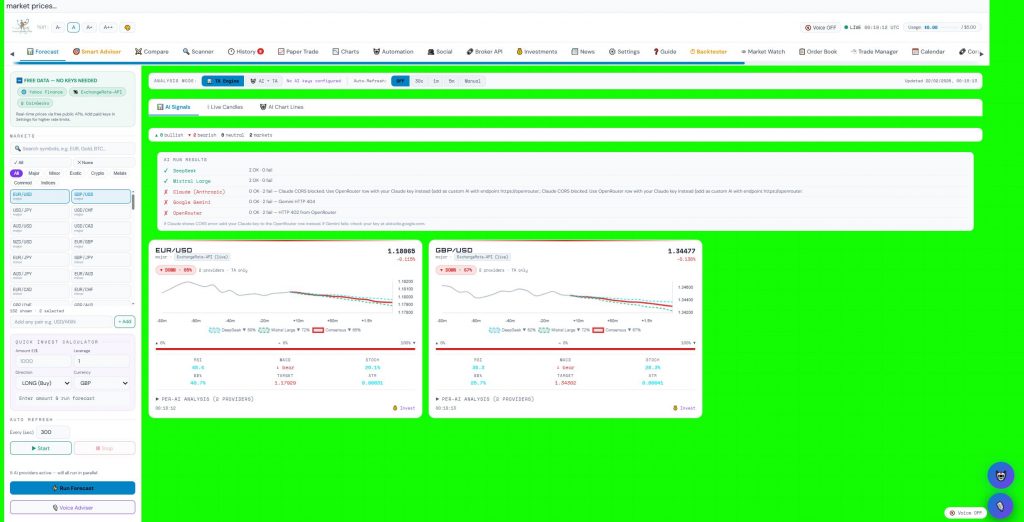
Understanding a Forecast Card
Each card contains:
text
┌─────────────────────────────────────────────────────────┐
│ EUR/USD · major · 🟢 Yahoo Finance │
│ 📰↑ 3 news · ⚠ NEWS CONFLICT │
│ │
│ ▲ BUY · 78% │
│ │
│ ┌─────────────────────────────────────────────────────┐│
│ │ Chart ││
│ │ Grey line = history ││
│ │ Coloured dashed = AI projection ││
│ └─────────────────────────────────────────────────────┘│
│ │
│ ▲ 50% → 20% ▼ 30% │
│ [████████████████████████████████████████████████████] │
│ │
│ RSI: 58 MACD: ↑ bull Stoch: 42% BB%: 65% │
│ Target: 1.0882 ATR: 0.0012 │
│ │
│ ⚠ AI DISAGREEMENT — 3 bullish vs 2 bearish │
│ │
│ ▶ Per-AI Analysis │
│ │
│ 10:35 AM 💰 Invest │
└─────────────────────────────────────────────────────────┘
Top Section:
- Symbol– The market (e.g., EUR/USD)
- Category– major, crypto, etc.
- Data Source– 🟢 = live, 🔴 = simulated
- News Badges– 📰↑ = bullish news, 📰↓ = bearish news
- Conflict Badge– ⚠ when news contradicts forecast
Main Signal:
- ▲ BUY / ▼ SELL / → HOLD
- Confidence %– How certain the AI is
- Colour matches direction
Chart:
- Grey line = historical price (last 80 minutes)
- Coloured dashed line = AI’s projected path
- Individual AI lines (if multiple providers)
Vote Bar:
- Green = % of AIs saying UP
- Red = % saying DOWN
- Grey = neutral
Indicators Row:
- RSI– Relative Strength Index
- MACD– ↑ bull / ↓ bear
- Stochastic– Momentum oscillator
- BB%– Bollinger Band position
- Target– Predicted price
- ATR– Average True Range (volatility)
AI Disagreement Warning:
- Appears when AIs split their votes
- ⚠ Treat with caution, reduce position size
Per-AI Analysis:
Click the expander to see each AI’s individual:
- Direction
- Confidence
- Analysis text
- News impact rating
Bottom Bar:
- Timestamp
- 💰 Invest button (adds to Investments tab)
Per-AI Breakdown
When you expand “Per-AI Analysis”, you’ll see:
text
┌─────────────────────────────────────────────────────────┐
│ OpenAI GPT-4o ▲ UP 78% │
│ [██████████████████████████████████████] │
│ Analysis: Strong uptrend with RSI bullish divergence │
│ 📰+ positive news │
├─────────────────────────────────────────────────────────┤
│ Google Gemini ▼ DOWN 55% │
│ [██████████████████████████] │
│ Analysis: Overbought conditions suggest pullback │
│ 📰⚠ conflicting news │
├─────────────────────────────────────────────────────────┤
│ DeepSeek → HOLD 62% │
│ [███████████████████████████████] │
│ Analysis: Mixed signals, wait for clearer setup │
│ 📰→ neutral │
└─────────────────────────────────────────────────────────┘
Each row shows:
- Provider name
- Direction arrow
- Confidence %
- Confidence bar
- Analysis text
- News impact (📰+, 📰-, 📰⚠, 📰→)
The News Box
If news was used in the forecast, you’ll see a blue box:
text
📰 3 relevant headlines fed into AI forecasts:
“Fed signals cautious approach…” |
“EUR strength persists…” — Conflicts with technical direction!
Quick Invest
Click the 💰 Invest button on any card to:
- Switch to the Investments tab
- Auto-fill the symbol and predicted move %
- Add as an investment scenario
Chapter 11: Smart Trade Advisor
Overview
The Smart Advisor is like having a professional trading coach. It analyses one market in depth and gives you exact instructions: BUY, SELL, HOLD, or WAIT.
text
┌─────────────────────────────────────────────────────────┐
│ SMART ADVISOR │
├─────────────────────────────────────────────────────────┤
│ ┌──────────────┐ ┌────────────────────────────────┐ │
│ │ LEFT PANEL │ │ RIGHT PANEL (ADVICE) │ │
│ │ • Market │ │ ┌─────────────────────────┐ │ │
│ │ • Horizon │ │ │ EUR/USD: BUY with 78% │ │ │
│ │ • Experience │ │ │ confidence │ │ │
│ │ • Balance │ │ ├─────────────────────────┤ │ │
│ │ • Risk % │ │ │ PLAIN ENGLISH: │ │ │
│ │ • Broker │ │ │ “The majority of AIs │ │ │
│ │ │ │ │ agree: buy EUR/USD now” │ │ │
│ │ • Auto-Run │ │ ├─────────────────────────┤ │ │
│ │ Timer │ │ │ TECHNICAL SNAPSHOT │ │ │
│ │ │ │ │ RSI: 58 | MACD: ↑ | … │ │ │
│ │ • Price │ │ ├─────────────────────────┤ │ │
│ │ Alerts │ │ │ BROKER INSTRUCTIONS │ │ │
│ │ │ │ │ Step 1: Log into OANDA │ │ │
│ │ • Group Run │ │ │ Step 2: Set Units: 1000 │ │ │
│ └──────────────┘ │ └─────────────────────────┘ │ │
└─────────────────────────────────────────────────────┘
Left Panel Configuration
Select Market:
- Choose from the dropdown
- Click quick buttons below (EUR/USD, GBP/USD, GOLD, BTC, etc.)
Trading Horizon:
- 15 minutes – Scalp
- 1 hour – Short trade (default)
- 4 hours – Intraday
- 1 day – Swing
- 1 week – Position
Experience Level:
- 🟢 Beginner – Plain English, no jargon
- 🟡 Intermediate – Some technical terms
- 🔴 Advanced – Full technical details
Account Settings:
- Balance– Your account size (default: $1000)
- Currency– USD, GBP, EUR, AUD
- Risk %– What % of account to risk (1-5%)
Broker:
- OANDA (Forex, Metals, Indices)
- Alpaca (Stocks, Crypto)
- Binance (Crypto)
- Generic/Other
Auto-Run Timer
- Set interval in seconds (10 to 86400)
- Choose preset: 30s scalp, 1min, 5min, etc.
- Click ▶ START AUTO
- Advisor re-runs automatically
- Click ⏹ STOPto cancel
The timer shows countdown to next run.
Price Alerts
Setting an Alert:
- Symbol– Select market
- Target Price– Enter level (e.g., 1.08500)
- Condition:
- Price goes ABOVE
- Price goes BELOW
- Price CROSSES (either direction)
- Alarm Sound:
- 🔔 Classic Beep
- 📈 Rising Tone (BUY)
- 📉 Falling Tone (SELL)
- 🚨 Urgent Alarm
- 🔔 Bell Chime
- Auto-Trade(requires OANDA connected):
- 🔔 Alarm only
- ⚡ Auto BUY on OANDA
- ⚡ Auto SELL on OANDA
- 🤖 Let AI decide BUY/SELL
Testing:
Click 🔊 Test to hear your selected sound.
Active Alerts:
All active alerts appear in the list with:
- Symbol
- Condition
- Target price
- ✕ button to delete
Group Run
Adding Symbols:
- Type a symbol in the input field
- Click +to add
- Or click quick-add buttons (EUR/USD, GBP/USD, etc.)
Running the Group:
- Add multiple symbols
- Click 🔁 RUN ALL GROUP
- Results appear in a dashboard below
Group Results Dashboard:
- Colour-coded grid (green = BUY, red = SELL, yellow = HOLD)
- Confidence bars
- Entry price, SL, TP
- AI verdict
- Click any symbol to view full analysis
- Summary bar showing total BUYs/SELLs/HOLDS
Running Smart Advisor
- Configure all settings in left panel
- Click 🤖 GET AI ADVICE NOW
- Wait 15-30 seconds
- Full analysis appears in right panel
Understanding Advisor Output
Action Verdict:
text
🟢 BUY (or 🔴 SELL / 🟡 HOLD / ⏸ WAIT)
AI Consensus Verdict for EUR/USD
Confidence: 78%
Confidence Bar:
- Visual representation of confidence %
- Colour: green (high), yellow (medium), red (low)
Vote Breakdown:
- Buy: 4 votes
- Sell: 1 vote
- Hold: 2 votes
- Wait: 0 votes
Plain English Verdict:
text
💬 PLAIN ENGLISH — What should I do?
“The majority of AIs agree: buy EUR/USD now. RSI is neutral at 58,
MACD is bullish, and EMA trend is up. Entry around 1.0854, stop at
1.0820, target 1.0910.”
Price Chart:
- Candlestick chart of recent price action
- EMA9 (orange dashed)
- EMA21 (purple dashed)
Technical Snapshot:
text
RSI (14): 58 → Neutral
MACD: BULLISH → Momentum turning up
EMA Trend: BULLISH → Short EMA above long
Bollinger %B: 65% → Mid-range
Stochastic: 42 → Normal
Overall Bias: BULLISH (4 buy / 1 sell)
Key Price Levels:
- Support: 1.0820, 1.0805
- Resistance: 1.0880, 1.0905
- Fibonacci levels
All AI Verdicts:
Shows every AI provider’s opinion, grouped by category:
- 🧠 Fundamental / Reasoning AIs
- 📐 Technical / Speed AIs
- 💬 Sentiment / News AIs
Broker Instructions:
text
🏦 HOW TO PLACE THIS TRADE ON OANDA
YOUR TRADE PARAMETERS — click any value to copy it:
Direction: ⬆ BUY / LONG
Entry Price: 1.0854 📋
Stop Loss 🛡: 1.0820 📋
Take Profit 🎯: 1.0910 📋
Position Size: 1000 units 📋
Risk Amount: $15.00
Reward Ratio: 1:2.5
Suggested Leverage: 20:1
Step-by-step on OANDA:
1️⃣ Log in to your OANDA account
2️⃣ Click “Trade”, search for “EUR/USD”
3️⃣ Click “Order”, select “Buy”
4️⃣ Set Units to 1000
5️⃣ Set Stop Loss to 1.0820
6️⃣ Set Take Profit to 1.0910
7️⃣ Review and submit
Entry Timing:
text
⏱️ WHEN TO ENTER
“Enter within the next 2 hours while price is near 1.0854.
Do not chase if price has already moved more than 0.0015 away.”
Best entry conditions:
✅ Price is within 0.3% of entry level
✅ AI confidence stays above 60%
✅ No major news events in next 30 minutes
Risk Management:
text
🛡️ RISK MANAGEMENT — Protecting your account
Account Balance: $1000
Risk This Trade: $15.00 (1%)
Target Profit: $37.50
Entry Window: 2 hours
🔴 GOLDEN RULES — Never break these:
- NEVER risk more than 2% per trade
- ALWAYS set a Stop Loss
- Never “average down” on losing positions
- Don’t revenge trade after a loss
- Practice on demo first
Chapter 12: Market Scanner
Overview
The Scanner analyses entire market categories at once, finding the strongest signals across many symbols.
text
┌─────────────────────────────────────────────────────────┐
│ MARKET SCANNER │
├─────────────────────────────────────────────────────────┤
│ ┌─────────────────────────────────────────────────────┐ │
│ │ Category: [Major Forex ▼] Signal: [All signals ▼] │ │
│ │ Sort By: [Confidence ↓ ▼] ☑ Alert on strong │ │
│ └─────────────────────────────────────────────────────┘ │
│ │
│ ┌─────────┐ ┌─────────┐ ┌─────────┐ ┌─────────┐ │
│ │ EUR/USD │ │ GBP/USD │ │ USD/JPY │ │ AUD/USD │ │
│ │ ▲ BUY │ │ ▼ SELL │ │ ▼ SELL │ │ ▲ BUY │ │
│ │ 78% │ │ 65% │ │ 72% │ │ 55% │ │
│ │ +0.12% │ │ -0.08% │ │ -0.15% │ │ +0.05% │ │
│ └─────────┘ └─────────┘ └─────────┘ └─────────┘ │
└─────────────────────────────────────────────────────────┘
Configuration
Category:
- Major Forex
- Minor Forex
- Exotic Forex
- Crypto
- Metals
- Commodities
- Indices
- ALL MARKETS
Signal Filter:
- All signals
- Bullish only
- Bearish only
- Strong only (conf ≥ 65%)
Sort By:
- Confidence ↓ (highest first)
- Predicted Move ↓ (largest move)
- RSI extremes (overbought/oversold first)
- Symbol A-Z
Alert on strong signals:
Check to receive notifications when strong signals (≥70% confidence) are found.
Running a Scan
- Select your category
- Choose filters
- Click ⚡ Scan Markets
- Wait 10-30 seconds
- Results appear in grid
Understanding Scanner Results
Each result card shows:
text
┌─────────────────────────────────┐
│ EUR/USD · major · Yahoo Finance │
│ │
│ EUR/USD │
│ 1.0854 │
│ ┌─────────┐ │
│ │ ▲ BUY │ 78% │
│ └─────────┘ │
│ │
│ CONF MOVE RSI │
│ 78% +0.12% 58 │
│ │
│ SL 1.0820 TP 1.0910 │
│ [████████████████████████████] │
│ │
│ MACD ↑ · BB 65% │
│ [+ Forecast] │
└─────────────────────────────────┘
- Symboland data source
- Current price
- Direction badge(▲ BUY / ▼ SELL / → HOLD)
- Confidence %with colour bar
- Predicted move %
- RSI valuewith colour (red=overbought, green=oversold)
- SL and TPbased on your settings
- Indicator summary(MACD, BB%)
- + Forecast button– adds to Forecast tab selection
Summary Statistics
Above the grid, you’ll see:
text
Scanned: 48 Bullish: 23 Bearish: 15 Neutral: 10
Strong Buy: 8 Strong Sell: 5 Bias: 🟢 BULL
Heatmap View
Click 🔥 Heatmap after scanning to see:
text
MARKET HEATMAP — colour = move %, brightness = confidence
┌─────┬─────┬─────┬─────┬─────┬─────┐
│EUR │GBP │USD │AUD │NZD │CAD │
│+0.12│-0.08│-0.15│+0.05│-0.03│-0.10│
│ 78% │ 65% │ 72% │ 55% │ 48% │ 61% │
├─────┼─────┼─────┼─────┼─────┼─────┤
│CHF │JPY │XAU │BTC │ETH │SOL │
│-0.06│-0.22│+0.35│+2.5 │+1.8 │+3.2 │
│ 52% │ 68% │ 81% │ 73% │ 69% │ 85% │
└─────┴─────┴─────┴─────┴─────┴─────┘
- Brighter green = stronger bullish signal
- Brighter red = stronger bearish signal
- Click any cell to add to Forecast
Export Results
Click 📤 Export to save scanner results as CSV:
text
Symbol,Category,Direction,Confidence%,Move%,RSI,Target
EUR/USD,major,up,78,0.12,58,1.0882
GBP/USD,major,down,65,-0.08,42,1.2580
Chapter 13: Paper Trading
Overview
Paper Trade gives you a virtual $10,000 account to practice trading with real market prices, zero real money at risk.
text
┌─────────────────────────────────────────────────────────┐
│ PAPER TRADE │
├─────────────────────────────────────────────────────────┤
│ ┌─────────┐ ┌─────────┐ ┌─────────┐ ┌─────────┐ │
│ │Balance │ │ Equity │ │ Open P&L │ │ Win Rate│ │
│ │$10,000 │ │$10,000 │ │ $0.00 │ │ — │ │
│ └─────────┘ └─────────┘ └─────────┘ └─────────┘ │
│ │
│ ┌─────────────────────────────────────────────────────┐ │
│ │ PLACE TRADE │ │
│ │ Symbol: [EUR/USD ] Entry: [1.0854 ] │ │
│ │ Direction: [LONG ▼] Lot: [$1000 ] Lev: [1:20 ▼] │ │
│ │ SL%: [1.5 ] TP%: [3.0 ] AI Signal: ▲ BUY 78% │ │
│ │ [▶ Place Trade] │ │
│ └─────────────────────────────────────────────────────┘ │
│ │
│ ┌─────────────────────────────────────────────────────┐ │
│ │ OPEN POSITIONS │ │
│ │ ┌─────┬────┬─────┬─────┬─────┬─────┬─────┬──────┐ │ │
│ │ │Sym │Type│Entry│Curr │ SL │ TP │ P&L │Action│ │ │
│ │ │EUR │▲ │1.085│1.086│1.082│1.091│+$10 │[Close│ │ │
│ │ └─────┴────┴─────┴─────┴─────┴─────┴─────┴──────┘ │ │
│ └─────────────────────────────────────────────────────┘ │
│ │
│ ┌─────────────────────────────────────────────────────┐ │
│ │ EQUITY CURVE │ │
│ │ ┌───────────────────────────────────────────────┐ │ │
│ │ │ Chart │ │ │
│ │ └───────────────────────────────────────────────┘ │ │
│ └─────────────────────────────────────────────────────┘ │
└─────────────────────────────────────────────────────────┘
Account Summary
The top bar shows your virtual account status:
- Account Balance– Available funds
- Equity– Balance + open P&L
- Open P&L– Current profit/loss on open positions
- Total P&L– Overall profit/loss including closed trades
- Win Rate– % of winning trades
- Open Trades– Number of positions
Placing a Trade
Manual Entry:
- Enter Symbol(e.g., EUR/USD)
- Entry Price– Auto-fills from forecast if available
- Direction– LONG (buy) or SHORT (sell)
- Lot Size ($)– Amount to trade
- Leverage– 1:1 to 1:500
- Stop Loss %– e.g., 1.5% = maximum loss
- Take Profit %– e.g., 3.0% = target gain
- Click ▶ Place Trade
Fill from Forecast:
- Run a forecast first
- Click ⚡ Fill from Forecast
- All fields auto-populate with the best signal
- Review and place trade
Understanding Margin
When you place a trade, margin is calculated:
- Margin = Lot Size ÷ Leverage
- Example: $1000 ÷ 20 = $50 margin required
The margin info box shows:
- Required margin
- Maximum loss after fees
- Maximum gain after fees
- Risk:Reward ratio
- Estimated fees
Trading Fees
The fees panel simulates real broker costs:
text
Spread (pips): 1.5
Commission per lot ($): 3.50
Overnight Swap (% p.a.): 2.50
Slippage (pips): 0.30
Capital Gains Tax (%): 20
Financing Rate (% p.a.): 4.0
Platform Fee ($/month): 0
Custom Fee: [label] $[amount]
All fees are automatically deducted from P&L calculations.
Open Positions
The positions table shows:
|
Column |
Description |
|
Symbol |
Market (e.g., EUR/USD) |
|
Type |
▲ LONG or ▼ SHORT |
|
Entry |
Entry price |
|
Current |
Current market price |
|
SL |
Stop loss price |
|
TP |
Take profit price |
|
P&L |
Current profit/loss (colour-coded) |
|
Status |
OPEN or CLOSED |
|
Action |
✕ Close button |
Closing Trades
- Close individual– Click ✕ next to any position
- Close All– Closes all open positions
- Auto-close– SL and TP close automatically when hit
Refreshing Prices
Click 🔄 Refresh Prices to:
- Update all open positions with latest market prices
- Check for SL/TP hits
- Recalculate P&L
Trade Log
The log shows all closed trades:
text
Date Symbol Dir Entry Exit P&L Open Close
10:35 EUR/USD ▲ 1.0854 1.0910 +$56.00 10:35 11:45
10:15 GBP/USD ▼ 1.2640 1.2615 -$25.00 10:15 10:55
Equity Curve
The chart shows your account equity over time:
- Green line = growing account
- Red line = declining account
- Dotted line = starting balance
Export Trade Log
Click 📤 Export CSV to download your trade history:
- Symbol, Direction, Entry, Exit, P&L, Dates
- Perfect for tax records or analysis
Reset Account
Click 🔄 Reset Account to:
- Restore $10,000 balance
- Clear all positions and history
- Start fresh
Chapter 14: Trade Manager
Overview
The Trade Manager is a full MT5-style order management system for paper trading. It supports all order types and provides real-time position tracking.
text
┌─────────────────────────────────────────────────────────┐
│ TRADE MANAGER │
├─────────────────────────────────────────────────────────┤
│ ┌────────────────────┐ ┌────────────────────────────┐ │
│ │ NEW ORDER │ │ ┌─────────┐ ┌─────────┐ │ │
│ │ Symbol: EUR/USD │ │ │Balance │ │ Equity │ │ │
│ │ Type: Market ▼ │ │ │$10,000 │ │$10,000 │ │ │
│ │ Volume: 0.1 lots │ │ └─────────┘ └─────────┘ │ │
│ │ Leverage: 100 │ │ │ │
│ │ SL: 1.0820 │ │ ┌─────────────────────┐ │ │
│ │ TP: 1.0910 │ │ │ OPEN POSITIONS │ │ │
│ │ Trailing: 0 pips │ │ │ # Sym Type … │ │ │
│ │ Comment: │ │ └─────────────────────┘ │ │
│ │ ┌─────┐ ┌─────┐ │ │ │ │
│ │ │BUY │ │SELL │ │ │ ┌─────────────────────┐ │ │
│ │ └─────┘ └─────┘ │ │ │ PENDING ORDERS │ │ │
│ └────────────────────┘ │ └─────────────────────┘ │ │
│ │ │ │
│ ┌────────────────────┐ │ ┌─────────────────────┐ │ │
│ │ RISK CALCULATOR │ │ │ TRADE HISTORY │ │ │
│ │ Balance: $10000 │ │ └─────────────────────┘ │ │
│ │ Risk%: 1.0 │ └────────────────────────────┘ │
│ │ SL pips: 20 │ │
│ │ [Calculate Lot] │ │
│ └────────────────────┘ │
└─────────────────────────────────────────────────────────┘
Order Types
The Trade Manager supports:
|
Type |
Description |
|
Market |
Execute immediately at current price |
|
Limit |
Buy below or sell above current price |
|
Stop |
Buy above or sell below current price |
|
Stop Limit |
Combines stop and limit |
|
Buy Stop |
Buy when price rises to level |
|
Sell Stop |
Sell when price falls to level |
|
Buy Limit |
Buy when price falls to level |
|
Sell Limit |
Sell when price rises to level |
Placing a Market Order
- Select Symbol
- Set Order Typeto “Market”
- Enter Volumein lots (0.1 = 10,000 units)
- Set Leverage(1-1000)
- Enter Stop Lossprice (optional)
- Enter Take Profitprice (optional)
- Click ⬆ BUYor ⬇ SELL
Placing a Pending Order
- Select Order Type(Limit, Stop, etc.)
- At Pricefield appears – enter your trigger price
- Fill other fields as normal
- Click BUY or SELL
Real-time Price Display
The order panel shows current market data:
text
Bid: 1.0852 Ask: 1.0856
Spread: 4 pips Margin: $10.85
Risk Calculator
- Enter your Balance
- Set Risk %(e.g., 1% = $100 risk on $10,000)
- Enter SL Distancein pips
- Click Calculate Lot Size
- Result shows recommended lot size
Open Positions
The open positions table shows:
- Position ID
- Symbol
- Direction
- Lots
- Entry price
- Current price
- Stop Loss
- Take Profit
- Current P&L
- Close button
Pending Orders
The pending orders table shows:
- Order ID
- Symbol
- Order type
- Lots
- Trigger price
- Stop Loss
- Take Profit
- Comment
- Cancel button
Trade History
The history table shows all closed trades:
- ID
- Symbol
- Direction
- Lots
- Open time
- Close time
- P&L
- Pips gained/lost
Account Summary
The top bar shows:
- Balance– Available funds
- Equity– Balance + open P&L
- Margin Used– Funds reserved for open positions
- Free Margin– Available for new positions
- Open P&L– Current profit/loss
PART FOUR: ADVANCED ANALYSIS
Chapter 15: Multi-Timeframe Analysis
Overview
MTF Analysis shows you the trend across all timeframes simultaneously – just like professional traders use.
text
┌─────────────────────────────────────────────────────────┐
│ MULTI-TIMEFRAME ANALYSIS │
├─────────────────────────────────────────────────────────┤
│ Symbol: [EUR/USD ▼] [▶ Analyse] │
│ │
│ ┌─────────────────────────────────────────────────────┐ │
│ │ OVERALL VERDICT: STRONG BUY │ │
│ │ Bullish: 6/8 timeframes │ │
│ │ [██████████████████████████████] 75% bull │ │
│ └─────────────────────────────────────────────────────┘ │
│ │
│ ┌───────┐ ┌───────┐ ┌───────┐ ┌───────┐ ┌───────┐ │ │
│ │ M1 │ │ M5 │ │ M15 │ │ M30 │ │ H1 │ │ │
│ │ ▲ UP │ │ ▲ UP │ │ ▼ DOWN│ │ ▲ UP │ │ ▲ UP │ │ │
│ │ Strong│ │Strong │ │Weak │ │Moderate│ │Strong │ │ │
│ │ RSI 58│ │RSI 62 │ │RSI 42 │ │RSI 55 │ │RSI 61 │ │ │
│ └───────┘ └───────┘ └───────┘ └───────┘ └───────┘ │ │
│ ┌───────┐ ┌───────┐ ┌───────┐ │ │
│ │ H4 │ │ D1 │ │ W1 │ │ │
│ │ ▲ UP │ │ ▲ UP │ │ ▼ DOWN│ │ │
│ │Strong │ │Moderate│ │Weak │ │ │
│ │RSI 63 │ │RSI 54 │ │RSI 38 │ │ │
│ └───────┘ └───────┘ └───────┘ │ │
│ │
│ ┌─────────────────────────────────────────────────────┐ │
│ │ TRADING STRATEGY BASED ON MTF │ │
│ │ All or most timeframes align bullish. This is a │ │
│ │ high-confidence long signal. Consider entering long │ │
│ │ on the next M15 or H1 pullback. │ │
│ └─────────────────────────────────────────────────────┘ │
└─────────────────────────────────────────────────────────┘
How to Use
- Select a Symbol
- Click ▶ Analyse
- View results across all 8 timeframes
Understanding the Grid
Each timeframe card shows:
- Timeframe– M1 to W1
- Direction– ▲ UP / ▼ DOWN
- Strength– Strong / Moderate / Weak
- RSI Value– Colour-coded (red=overbought, green=oversold)
- Trend Bar– Visual representation of strength
Overall Verdict
The top verdict synthesizes all timeframes:
- STRONG BUY– 6+ timeframes bullish
- BUY– 4-5 timeframes bullish
- NEUTRAL– Mixed signals
- SELL– 4-5 timeframes bearish
- STRONG SELL– 6+ timeframes bearish
MTF Trading Strategy
Based on the analysis, you get specific advice:
STRONG BUY Example:
“All or most timeframes align bullish. This is a high-confidence long signal. Consider entering long on the next M15 or H1 pullback with tight stop loss. Look for entry near the closest EMA on the M15 chart.”
NEUTRAL Example:
“Mixed timeframe signals. No clear directional bias. Best to wait for alignment before trading. Consider range-trading strategies or reducing position size if you do trade.”
Chapter 16: Correlation Matrix
Overview
The Correlation Matrix shows how different markets move in relation to each other – essential for diversification and hedging.
text
┌─────────────────────────────────────────────────────────┐
│ CORRELATION MATRIX │
├─────────────────────────────────────────────────────────┤
│ Period: [50 bars ▼] [↻ Refresh] │
│ │
│ EUR/USD GBP/USD USD/JPY XAU/USD BTC/USD │
│ EUR/USD 1.00 0.87 -0.72 0.55 0.22 │
│ GBP/USD 0.87 1.00 -0.63 0.48 0.19 │
│ USD/JPY -0.72 -0.63 1.00 -0.42 -0.15 │
│ XAU/USD 0.55 0.48 -0.42 1.00 0.45 │
│ BTC/USD 0.22 0.19 -0.15 0.45 1.00 │
│ │
│ ┌─────────────────────┐ ┌─────────────────────────┐ │
│ │ STRONG POSITIVE │ │ STRONG NEGATIVE │ │
│ │ EUR/USD / GBP/USD │ │ EUR/USD / USD/JPY │ │
│ │ +0.87 │ │ -0.72 │ │
│ │ XAU/USD / AUD/USD │ │ GBP/USD / USD/CHF │ │
│ │ +0.72 │ │ -0.80 │ │
│ └─────────────────────┘ └─────────────────────────┘ │
└─────────────────────────────────────────────────────────┘
Understanding Correlation Values
|
Range |
Meaning |
Trading Implication |
|
+0.7 to +1.0 |
Strong Positive |
Markets move together – avoid trading both same direction |
|
+0.3 to +0.7 |
Moderate Positive |
Some correlation – acceptable with caution |
|
-0.3 to +0.3 |
Weak/No Correlation |
Ideal diversification – independent movement |
|
-0.7 to -0.3 |
Moderate Negative |
Useful for hedging |
|
-1.0 to -0.7 |
Strong Negative |
Perfect hedge – move opposite |
Colour Coding
- Green= Positive correlation (deeper green = stronger)
- Red= Negative correlation (deeper red = stronger)
- Grey= Weak/no correlation
Strongest Correlations
The side panels highlight:
Strongest Positive:
- EUR/USD vs GBP/USD (+0.87)
- XAU/USD vs AUD/USD (+0.72)
- (List updates based on your data)
Strongest Negative:
- EUR/USD vs USD/JPY (-0.72)
- GBP/USD vs USD/CHF (-0.80)
- (List updates based on your data)
How to Use Correlation
For Diversification:
- Choose assets with weak correlation (-0.3 to +0.3)
- Example: BTC/USD and EUR/USD (0.22) are mostly independent
For Hedging:
- Choose strongly negative pairs
- Example: Long EUR/USD + Long USD/JPY partially hedges
For Risk Management:
- Don’t double up on strongly positive pairs
- Trading both EUR/USD and GBP/USD long doubles your exposure
Data Source
The matrix shows whether correlations are:
- 📡 Live computed (from recent price data)
- 📋 Estimated (live data unavailable)
Chapter 17: Economic Calendar
Overview
The Economic Calendar shows upcoming high-impact events that move markets – essential for avoiding volatility or trading news.
text
┌─────────────────────────────────────────────────────────┐
│ ECONOMIC CALENDAR │
├─────────────────────────────────────────────────────────┤
│ Impact: [🔴 High ▼] [↻ Refresh] │
│ │
│ Date/Time Impact Country Event Prev Fore Actual
│ 2026-03-07 🔴 HIGH 🇺🇸 US Non-Farm Payrolls 256K 170K —
│ 14:30 UTC │
│ 2026-03-12 🔴 HIGH 🇺🇸 US CPI (YoY) 2.9% 2.9% —
│ 13:30 UTC │
│ 2026-03-05 🟡 MEDIUM 🇪🇺 EU ECB Rate Decision 2.75% 2.5% —
│ 12:30 UTC │
│ 2026-02-24 ⚪ LOW 🇺🇸 US New Home Sales 698K 710K —
│ 15:00 UTC │
│ │
│ ┌─────────────────────────────────────────────────────┐ │
│ │ 🔴 HIGH IMPACT │ │
│ │ Major market movers: NFP, CPI, Fed decisions, GDP. │ │
│ │ Expect high volatility. Consider closing positions │ │
│ │ or widening SL before release. │ │
│ └─────────────────────────────────────────────────────┘ │
└─────────────────────────────────────────────────────────┘
Impact Levels
🔴 HIGH IMPACT
- Major market movers
- Examples: NFP, CPI, Fed decisions, GDP
- Expect high volatility
- Consider closing positions or widening stops
🟡 MEDIUM IMPACT
- Notable but not usually market-changing
- Examples: Retail sales, PMI, PPI
- Moderate volatility likely
⚪ LOW IMPACT
- Minor data releases
- Usually little market effect
- Normal trading conditions expected
Filtering Events
Use the impact buttons to filter:
- 🔴 High– Only high-impact events
- 🟡 Medium– Only medium-impact events
- ⚪ Low– Only low-impact events
- Click same button again to show all
Reading the Calendar
Each row shows:
- Date/Time– UTC time of release
- Impact– Colour-coded impact level
- Country– Flag and code
- Event– Description
- Previous– Last release value
- Forecast– Market expectation
- Actual– Actual released value (when available)
- Currency Effect– Which currency may move
Data Source
The calendar shows whether events are:
- 📡 Live calendar data (from Forex Factory or Myfxbook)
- 📋 Static calendar (live feed unavailable – dates may be outdated)
Trading Around News
Before High-Impact News:
- Consider closing positions to avoid volatility
- Widen stop losses if you stay in
- Reduce position size
During News:
- Spreads widen dramatically
- Slippage increases
- Price can gap through stops
After News:
- Wait 15-30 minutes for initial volatility to settle
- Look for confirmed direction before entering
Chapter 18: News Intelligence Engine
Overview
The News tab fetches live financial headlines and scores them for sentiment – bullish or bearish.
text
┌─────────────────────────────────────────────────────────┐
│ NEWS INTELLIGENCE │
├─────────────────────────────────────────────────────────┤
│ [📡 Fetch Live News] [🔄 Auto-sync OFF] │
│ │
│ ┌─────────────────────────────────────────────────────┐ │
│ │ ⚠ 2 CONFLICTS – News vs Forecast disagree │ │
│ │ EUR/USD: news is bearish but forecast says UP │ │
│ │ “Fed signals cautious approach…” │ │
│ └─────────────────────────────────────────────────────┘ │
│ │
│ ┌─────────────────────────────────────────────────────┐ │
│ │ Reuters ⚡ HIGH IMPACT ▲ BULL │ │
│ │ Fed signals cautious approach to rate cuts │ │
│ │ 14:30 UTC · Score: +8 │ │
│ └─────────────────────────────────────────────────────┘ │
│ ┌─────────────────────────────────────────────────────┐ │
│ │ MarketWatch → NEUTRAL │ │
│ │ EUR/USD steady as ECB holds rates │ │
│ │ 14:15 UTC · Score: +1 │ │
│ └─────────────────────────────────────────────────────┘ │
│ ┌─────────────────────────────────────────────────────┐ │
│ │ CoinDesk ▼ BEAR │ │
│ │ Bitcoin holds key support; sentiment cautious │ │
│ │ 14:05 UTC · Score: -3 │ │
│ └─────────────────────────────────────────────────────┘ │
└─────────────────────────────────────────────────────────┘
Fetching News
- Click 📡 Fetch Live Newsto load headlines
- Auto-sync can be enabled to fetch before each forecast
- News is scored using bullish/bearish word lists
Understanding Headlines
Each news card shows:
- Source– Reuters, MarketWatch, CoinDesk, etc.
- ⚡ HIGH IMPACT– Major news that moves markets
- Sentiment Badge– ▲ BULL / ▼ BEAR / → NEUTRAL
- Headline– The news title
- Timestamp– When published
- Score– -10 to +10 (bullish positive, bearish negative)
News-Forecast Conflicts
The conflict banner appears when news sentiment contradicts forecast direction:
text
⚠ 2 CONFLICTS – News vs Forecast disagree
EUR/USD: news is bearish but forecast says UP
“Fed signals cautious approach…”
This is a strong warning sign – trade with extreme caution.
How News Affects Forecasts
When you run a forecast:
- News headlines relevant to each symbol are identified
- They’re injected into the AI prompt
- AIs consider news sentiment alongside technicals
- News impact is shown in per-AI breakdowns
Auto-Sync
Enable 🔄 Auto-sync ON to:
- Automatically fetch news before each forecast
- Keep headlines current
- Always have fresh news context
Chapter 19: AI Chart Analysis
Overview
The AI Chart Analysis sub-tab (under Forecast) lets AI draw support/resistance, Fibonacci levels, trend channels, and prediction paths on any symbols.
text
┌─────────────────────────────────────────────────────────┐
│ AI CHART ANALYSIS │
├─────────────────────────────────────────────────────────┤
│ Quick groups: [Forex] [Crypto] [Metals] [Indices] │
│ │
│ EUR/USD GBP/USD XAU/USD BTC/USD │
│ │
│ Add symbol: [________] [+ Add] TF: [H4 ▼] Type: [Full ▼]
│ │
│ [🤖 Run AI Analysis] [🗑 Clear] [💾 Save to History] │
│ │
│ ┌─────────────────────────────────────────────────────┐ │
│ │ CHART │
│ │ ┌───────────────────────────────────────────────┐ │ │
│ │ │ Candlesticks with AI overlays: │ │ │
│ │ │ • Support lines (green dashed) │ │ │
│ │ │ • Resistance lines (red dashed) │ │ │
│ │ │ • Fibonacci levels (orange/yellow) │ │ │
│ │ │ • FVG zones (shaded areas) │ │ │
│ │ │ • Prediction path (coloured dotted line) │ │ │
│ │ └───────────────────────────────────────────────┘ │ │
│ └─────────────────────────────────────────────────────┘ │
│ │
│ ┌─────────────────────────────────────────────────────┐ │
│ │ EUR/USD – H1 Analysis │ │
│ │ Trend: BULLISH · Strength: Strong │ │
│ │ Prediction: ▲ UP to 1.0920 (78% confidence) │ │
│ │ Support: 1.0820, 1.0805 · Resistance: 1.0880, 1.0905 │ │
│ │ Summary: Price above EMA21, bullish divergence… │ │
│ └─────────────────────────────────────────────────────┘ │
└─────────────────────────────────────────────────────────┘
Adding Symbols
Quick Groups:
- Click Forex– adds all major forex pairs
- Click Crypto– adds top cryptocurrencies
- Click Metals– adds gold, silver, etc.
- Click Indices– adds major indices
Custom Symbol:
- Type symbol (e.g., “TSLA”)
- Click + Add
Removing:
- Click any symbol chip to remove it
Configuration
- Timeframe– M5, M15, H1, H4, D1, W1
- Analysis Type:
- Full Analysis – All levels
- Support & Resistance – Only S&R lines
- Fibonacci – Only fib retracements
- Trend Channel – Only channel lines
- AI Prediction Path – Only future projection
Running Analysis
- Add symbols
- Select timeframe and type
- Click 🤖 Run AI Analysis
- Wait 10-30 seconds per symbol
- Results appear on chart and in output panel
Understanding the Output
On the Chart:
- Green dashed lines= Support levels
- Red dashed lines= Resistance levels
- Orange/Yellow lines= Fibonacci levels (23.6%, 38.2%, 50%, 61.8%)
- Shaded areas= Fair Value Gaps (FVG)
- Coloured dotted line= AI prediction path
In the Output Panel:
text
EUR/USD – H1 Analysis
Trend: BULLISH · Strength: Strong
Prediction: ▲ UP to 1.0920 (78% confidence)
Support: 1.0820, 1.0805
Resistance: 1.0880, 1.0905
Fibonacci: 23.6% 1.0845 · 38.2% 1.0862 · 50% 1.0875 · 61.8% 1.0888
Summary: Price above EMA21, bullish divergence on RSI,
clean structure with higher highs. Smart Money Concepts
identify liquidity above 1.0900. Macro backdrop supportive.
Entry Zone: 1.0835 – 1.0855
Stop Loss: 1.0810
Take Profit: 1.0920
Saving to History
Click 💾 Save to History to store analysis in the history panel below.
History Panel
Saved analyses appear with:
- Symbol and timeframe
- Timestamp
- Expandable view of full analysis
- Delete button
AI Frameworks Used
The AI considers six advanced frameworks:
- Market Microstructure– Order flow, VPIN, adverse selection
- Auction Market Theory– Value Area, HVNs, tails
- Mean Reversion– Z-score, cointegration
- Fractals/Hurst– Trending vs mean-reverting classification
- Reflexivity Theory– Feedback loops, bubbles
- Smart Money Concepts– Liquidity sweeps, FVGs, order blocks
PART FIVE: AUTOMATION & STRATEGIES
Chapter 20: Automation & Expert Advisors
Overview
The Automation tab lets you create rule-based Expert Advisors (EAs) that auto-trade based on GilSignal forecasts.
text
┌─────────────────────────────────────────────────────────┐
│ AUTOMATION ENGINE │
├─────────────────────────────────────────────────────────┤
│ [🤖 + New Strategy] │
│ │
│ ┌─────────────────────────────────────────────────────┐ │
│ │ My EUR/USD Strategy [▶ RUNNING] │ │
│ │ Symbol: EUR/USD · Entry: AI Consensus UP │ │
│ │ Lot: $500 · Lev: 20x · SL: 1.5% · TP: 3.0% │ │
│ │ Trades: 12 · Wins: 8 · Win%: 66% · P&L: +$245 │ │
│ │ [⏹ Stop] [▷ Test Now] [🗑] │ │
│ └─────────────────────────────────────────────────────┘ │
│ │
│ ┌─────────────────────────────────────────────────────┐ │
│ │ STRATEGY BUILDER │ │
│ │ Name: [__________] Symbol: [EUR/USD ] │ │
│ │ Entry Signal: [AI Consensus UP ▼] │ │
│ │ Lot: [500] Lev: [20 ▼] SL%: [1.5] TP%: [3.0] │ │
│ │ Max Trades: [3] Trailing: [0.8] │ │
│ │ [💾 Save Strategy] [📊 Quick Backtest] │ │
│ └─────────────────────────────────────────────────────┘ │
└─────────────────────────────────────────────────────────┘
Entry Signals
|
Signal |
Description |
|
AI Consensus UP |
Buy when AI consensus is bullish |
|
AI Consensus DOWN |
Sell when AI consensus is bearish |
|
RSI Oversold (<30) |
Buy when RSI below 30 |
|
RSI Overbought (>70) |
Sell when RSI above 70 |
|
MACD Bullish Cross |
Buy when MACD crosses above signal |
|
MACD Bearish Cross |
Sell when MACD crosses below signal |
|
EMA 9/21 Bull Cross |
Buy when fast EMA crosses above slow |
|
EMA 9/21 Bear Cross |
Sell when fast EMA crosses below slow |
|
AI Confidence >75% |
Buy when any AI has very high confidence |
|
All AIs Agree |
Trade only when all AIs unanimous |
Creating a Strategy
- In Strategy Builder, enter a Name
- Select Symbol
- Choose Entry Signal
- Set Lot Size($)
- Set Leverage
- Set Stop Loss %and Take Profit %
- Set Max Open Trades(how many at once)
- Set Trailing Stop %(0 = disabled)
- Click 💾 Save Strategy
Starting a Strategy
- Find your strategy in the list
- Click ▶ Start
- Status changes to RUNNING
- Strategy will fire on next forecast
Testing a Strategy
- Click ▷ Test Nowto manually trigger based on current forecast
- The trade form in Paper Trade auto-fills
- Review and place trade manually
Quick Backtest
Click 📊 Quick Backtest to simulate 30 trades based on:
- R:R ratio of your strategy
- Estimated win rate
- Shows: win rate, profit factor, max drawdown, expectancy
Strategy Performance
Each strategy tracks:
- Total trades
- Wins
- Win rate
- Total P&L
Chapter 21: AI Auto-Trading Engine
Overview
The AI Trading tab is a fully autonomous trading system that monitors multiple symbols and executes trades based on AI analysis.
text
┌─────────────────────────────────────────────────────────┐
│ AI AUTO-TRADING │
├─────────────────────────────────────────────────────────┤
│ ┌────────────────────┐ ┌────────────────────────────┐ │
│ │ Symbols & Settings │ │ CURRENT AI SIGNAL │ │
│ │ EUR/USD GBP/USD │ │ ▲ BUY EUR/USD │ │
│ │ + Add │ │ Confidence: 78% │ │
│ │ Timeframe: H1 ▼ │ │ [████████████████████] │ │
│ │ Strategy: Consensus▼│ │ RSI:58 | MACD:↑ | EMA:↑ │ │
│ │ AI Model: Auto ▼ │ └────────────────────────────┘ │
│ │ Lot: 0.1 Max: 3 │ ┌────────────────────────────┐ │
│ │ SL: 30 TP: 60 │ │ Session P&L: +$56.20 │ │
│ │ Risk%: 1.0 Cool:15 │ │ Trades: 12 · Win%: 66% │ │
│ │ ☑ Trailing Stop │ └────────────────────────────┘ │
│ │ ☑ Pause during news │ │
│ │ [▶ Start AI Trading] │ │
│ └────────────────────┘ ┌────────────────────────────┐ │
│ │ OPEN POSITIONS │ │
│ │ EUR/USD ▲ 0.1 +$32 │ │
│ │ GBP/USD ▼ 0.1 +$24 │ │
│ └────────────────────────────┘ │
│ ┌────────────────────────────┐ │
│ │ ACTIVITY LOG │ │
│ │ [10:35] Opened BUY EUR/USD│ │
│ │ [10:20] Signal: BUY 78% │ │
│ └────────────────────────────┘ │
└─────────────────────────────────────────────────────────┘
Adding Symbols
Individual:
- Type symbol in input field
- Click +
Groups:
- Click FX– adds major forex pairs
- Click Crypto– adds top cryptocurrencies
- Click Stocks– adds major stocks
- Click Metals– adds gold, silver
Configuration
Timeframe:
- M5, M15, H1, H4, D1
AI Strategy:
- Multi-AI Consensus (default)
- Momentum Following
- Mean Reversion
- Breakout Trader
- AI Scalper
- Macro + Fundamentals
- News Sentiment
AI Model:
- Auto (best available)
- TA only (no AI)
- Specific AI (OpenAI, Gemini, etc.)
Risk Management:
- Lot Size (0.01 to 10)
- Max Trades (1-20)
- Stop Loss (pips)
- Take Profit (pips)
- Risk per Trade % (0.1-5%)
- Cooldown (minutes between analyses)
Options:
- Trailing Stop – moves stop as price moves favorably
- Pause during high-impact news
- Browser notifications on trade
Starting AI Trading
- Configure all settings
- Click ▶ Start AI Trading
- Status changes to “LIVE”
- Engine analyses all symbols on a loop
- Trades are placed automatically when conditions met
Understanding Signals
The main signal panel shows for the last analysed symbol:
- Direction (▲ BUY / ▼ SELL / ⏸ HOLD)
- Symbol name
- Confidence %
- Confidence bar
- Key indicators
- Detailed reason
Account Metrics
- Session P&L– Profit/loss for this session
- Total Trades– Number of trades taken
- Win Rate– % of winning trades
- Open Positions– Current open trades
- Best Trade– Largest winner
- Worst Trade– Largest loser
Open Positions
Shows all current AI-traded positions:
- Symbol
- Direction
- Lot size
- Open price
- Current P&L
- Close button
Activity Log
Timeline of all AI actions:
- Analysis runs
- Signals generated
- Trades opened/closed
- Errors or warnings
Stopping AI Trading
Click ⏹ Stop AI Trading to halt all automated activity.
Chapter 22: Backtester
Overview
The Backtester lets you test any strategy on historical data – just like MT5’s Strategy Tester.
text
┌─────────────────────────────────────────────────────────┐
│ STRATEGY TESTER │
├─────────────────────────────────────────────────────────┤
│ ┌────────────────────┐ ┌────────────────────────────┐ │
│ │ Symbol: EUR/USD │ │ ┌────────────────────┐ │ │
│ │ Timeframe: M15 ▼ │ │ │ NET PROFIT: +$345 │ │ │
│ │ Strategy: EMA Cross│ │ │ Win Rate: 58% │ │ │
│ │ Fast EMA: 9 │ │ │ Profit Factor: 1.8 │ │ │
│ │ Slow EMA: 21 │ │ │ Max DD: -12% │ │ │
│ │ Deposit: $10000 │ │ │ Sharpe: 1.2 │ │ │
│ │ Lot: 0.1 │ │ └────────────────────┘ │ │
│ │ SL: 20 pips │ │ ┌────────────────────┐ │ │
│ │ TP: 40 pips │ │ │ EQUITY CURVE │ │ │
│ │ Spread: 1.5 pips │ │ │ ┌──────────────┐ │ │ │
│ │ ☑ Trailing Stop │ │ │ │ Chart │ │ │ │
│ │ [▶ RUN BACKTEST] │ │ │ └──────────────┘ │ │ │
│ └────────────────────┘ │ └────────────────────┘ │ │
│ │ ┌────────────────────┐ │ │
│ │ │ TRADE HISTORY │ │ │
│ │ │ # Type Entry Exit│ │ │
│ │ │ 1 BUY 1.08 1.09 │ │ │
│ │ │ 2 SELL 1.09 1.08 │ │ │
│ │ └────────────────────┘ │ │
│ └────────────────────────────┘ │
└─────────────────────────────────────────────────────────┘
Strategy Options
EMA Crossover:
- Fast EMA (default 9)
- Slow EMA (default 21)
- Buy when fast crosses above slow, sell when crosses below
RSI Overbought/Oversold:
- RSI Period (default 14)
- RSI Overbought (default 70)
- Buy when crosses above oversold, sell when crosses below overbought
MACD:
- Buy when MACD crosses above signal
- Sell when crosses below
Bollinger Breakout:
- Buy when price closes below lower band and moves up
- Sell when price closes above upper band and moves down
Dual EMA + RSI:
- Buy on EMA cross if RSI < 55
- Sell on EMA cross if RSI > 45
Stochastic:
- Buy when %K < 20
- Sell when %K > 80
ADX Trend Follow:
- Buy on strong positive moves
- Sell on strong negative moves
Configuration
Test Period:
- Bars to simulate: 500 (fast) to 10,000 (detailed)
Modeling Quality:
- Open prices only (fastest)
- OHLC (balanced) – default
- Every tick (slowest, most accurate)
Running a Backtest
- Select Symbol
- Choose Strategy
- Adjust parameters
- Set Risk Management(SL, TP, spread, commission)
- Click ▶ RUN BACKTEST
- Wait for simulation to complete
Understanding Results
Statistics Bar:
|
Metric |
Description |
|
Net Profit |
Total gain/loss |
|
Final Balance |
Ending account balance |
|
Total Trades |
Number of trades executed |
|
Win Rate |
% of winning trades |
|
Profit Factor |
Gross profit ÷ gross loss (>1.5 good) |
|
Max Drawdown |
Largest peak-to-trough decline |
|
Avg Win |
Average winning trade |
|
Avg Loss |
Average losing trade |
|
Expectancy |
Average profit per trade |
|
Sharpe Ratio |
Risk-adjusted return (>1 good) |
Equity Curve:
- Line chart showing account balance over time
- Green = profitable, Red = losing
Drawdown Chart:
- Shows maximum loss at each point
- Helps visualize risk
Trade History:
- List of all trades with entry/exit prices
- P&L for each trade
- Reason for exit (SL, TP, signal)
Export Results
Click 📤 Export Report CSV to download:
- All trades with timestamps
- Statistics summary
- Perfect for further analysis in Excel
Chapter 23: Strategy Tester
Overview
The Strategy Tester (in Automation tab) provides a quick simulation for your custom EA before running it live.
How It Works
- Configure your EA in the Strategy Builder
- Click 📊 Quick Backtest
- The system simulates 30 trades based on:
- Your R:R ratio (TP÷SL)
- Estimated win rate from strategy type
- Randomised outcomes with your edge
Understanding the Simulation
Inputs:
- Symbol (for context only)
- SL and TP pips
- Risk:Reward ratio
Outputs:
text
📊 STRATEGY SIMULATION — R:R 1:2.0 (30 trades · EUR/USD)
Total Trades: 30
Win Rate: 52%
Net P&L: +$450
Final Balance: $10,450
Profit Factor: 1.45
Max Drawdown: -$180
Expectancy/tr: +$15.00
Wins: 16 · Losses: 14
Simulation uses R:R-based statistical model.
For price-based historical testing, use the Backtester tab.
Limitations
This is a statistical simulation, not a price-based backtest:
- Assumes all trades follow your R:R ratio
- Win rate estimated from strategy type
- Does not account for market conditions
- Use for rough estimate, then run full Backtester
Chapter 24: Custom Script Editor
Overview
The Script Editor lets you write custom JavaScript or Python code to automate trading logic.
text
┌─────────────────────────────────────────────────────────┐
│ SCRIPT EDITOR │
├─────────────────────────────────────────────────────────┤
│ [JS] [🐍 Python] [🤖 AI Write Script] [▶ Run] [🗑 Log] │
│ │
│ ⚠ Script Security: Code runs via new Function() with │
│ full page access. Safe for personal use only. │
│ │
│ ┌─────────────────────────────────────────────────────┐ │
│ │ // GilSignal EA Script — JavaScript │ │
│ │ // Available: fRes (Map), PT (paper trade), │ │
│ │ // ptPlaceTrade(), toast(), S (state) │ │
│ │ │ │
│ │ function onNewForecast(results) { │ │
│ │ results.forEach(r => { │ │
│ │ const allAgree = r.aiRes.every(a => │ │
│ │ a.direction === r.dir); │ │
│ │ if (allAgree && r.conf > 70) { │ │
│ │ eaLog(‘Signal: ‘ + r.sym + ‘ → ‘ + │ │
│ │ r.dir.toUpperCase()); │ │
│ │ // eaTrade(r.sym, r.dir, 500, 20); │ │
│ │ } │ │
│ │ }); │ │
│ │ } │ │
│ └─────────────────────────────────────────────────────┘ │
│ │
│ ┌─────────────────────────────────────────────────────┐ │
│ │ [SYSTEM] Script ready. │ │
│ │ [INFO] Script executed OK │ │
│ │ [WARN] RSI OVERSOLD: EUR/USD RSI=28 │ │
│ └─────────────────────────────────────────────────────┘ │
└─────────────────────────────────────────────────────────┘
Available Functions
JavaScript:
- fRes– Map of forecast results (key = symbol)
- PT– Paper Trade state object
- ptPlaceTrade()– Pre-fills trade form
- toast(msg, type)– Show notification
- S– Global settings object
- eaLog(msg, type)– Write to log
- eaTrade(sym, dir, lot, lev)– Queue a trade
Python:
- Pseudocode for building your own bot
- OANDA API examples included
Writing a Script
Example: Alert on RSI extremes
javascript
function checkRSI(results) {
results.forEach(r => {
if (r.ta.rsi < 30)
eaLog(‘RSI OVERSOLD: ‘ + r.sym + ‘ RSI=’ + r.ta.rsi, ‘warn’);
if (r.ta.rsi > 70)
eaLog(‘RSI OVERBOUGHT: ‘ + r.sym + ‘ RSI=’ + r.ta.rsi, ‘warn’);
});
}
Example: Auto-trade on unanimous signal
javascript
function onNewForecast(results) {
results.forEach(r => {
const allAgree = r.aiRes.every(a => a.direction === r.dir);
if (allAgree && r.conf > 70 && r.dir !== ‘neutral’) {
eaLog(‘Signal: ‘ + r.sym + ‘ → ‘ + r.dir.toUpperCase(), ‘ok’);
// Uncomment to auto-trade:
// eaTrade(r.sym, r.dir, 500, 20);
}
});
}
AI Script Writer
- Click 🤖 AI Write Script
- Describe what you want in plain English
- Select language (JS or Python)
- Click ✨ Generate
- AI writes the script for you
- Review and modify as needed
Running a Script
- Write or generate your script
- Click ▶ Run
- Results appear in log panel
- Script can access current forecast data
Log Panel
Shows execution history:
- [SYSTEM]– System messages
- [INFO]– Information
- [WARN]– Warnings
- [OK]– Success messages
- [ERR]– Errors
Click 🗑 Log to clear.
Security Warning
⚠️ Scripts run with full page access via new Function(). This is safe for personal single-user use only. Never deploy this app in a multi-user environment with user-submitted scripts – use a sandboxed Web Worker or server-side execution instead.
PART SIX: PORTFOLIO & RISK MANAGEMENT
Chapter 25: Investments Calculator
Overview
The Investments tab lets you calculate potential returns on theoretical positions, including all costs and taxes.
text
┌─────────────────────────────────────────────────────────┐
│ INVESTMENTS │
├─────────────────────────────────────────────────────────┤
│ ┌─────────┐ ┌─────────┐ ┌─────────┐ ┌─────────┐ │
│ │ Total │ │Position │ │Gross │ │Total │ │
│ │Invested │ │ Value │ │ P&L │ │Expenses │ │
│ │£0.00 │ │£0.00 │ │£0.00 │ │£0.00 │ │
│ └─────────┘ └─────────┘ └─────────┘ └─────────┘ │
│ ┌─────────┐ ┌─────────┐ │
│ │NET PROFIT││ ROI │ │
│ │ £0.00 ││ 0.00% │ │
│ └─────────┘ └─────────┘ │
│ │
│ ┌─────────────────────────────────────────────────────┐ │
│ │ ADD INVESTMENT SCENARIO │ │
│ │ Market: EUR/USD Dir: LONG Amt: 1000 Cur: GBP │ │
│ │ Lev: 1 Predicted%: 0.12 Label: EUR trade #1 │ │
│ │ [➕ Add Scenario] │ │
│ └─────────────────────────────────────────────────────┘ │
│ │
│ ┌─────────────────────────────────────────────────────┐ │
│ │ INVESTMENT SCENARIOS │ │
│ │ EUR trade #1 ▲ LONG ×1 +0.12% Gross: +£1.20 │ │
│ │ Invested: £1000 Net: +£0.96 │ │
│ └─────────────────────────────────────────────────────┘ │
└─────────────────────────────────────────────────────────┘
Adding an Investment
- Select Market / Pair
- Choose Direction(LONG/SHORT)
- Enter Amount(your stake)
- Select Currency(GBP, USD, EUR, etc.)
- Set Leverage
- Predicted % Move– auto-fills from forecast if available
- Add a Label(e.g., “EUR trade #1”)
- Click ➕ Add Scenario
Understanding the Math
For a LONG trade:
text
Gross P&L = Amount × Leverage × (Move % ÷ 100)
Example: £1000 × 1 × (0.12% ÷ 100) = +£1.20
For a SHORT trade:
text
Gross P&L = Amount × Leverage × (Move % ÷ 100) × -1
Expenses & Costs
The Expenses section lets you add:
|
Type |
Description |
Example |
|
Fixed |
Flat fee per trade |
£5 commission |
|
% of gross P&L |
Percentage of profit/loss |
20% tax |
|
% of investment |
Percentage of stake |
0.1% spread |
Adding an expense:
- Click + Add Expense
- Enter name (e.g., “Capital Gains Tax”)
- Select type (fixed / % of gross / % of investment)
- Enter amount
- It’s automatically applied to all scenarios
Default expenses:
- Capital Gains Tax (20% of profit)
- Broker Commission (£5 fixed)
- Spread Cost (0.1% of investment)
Net Profit Calculation
text
Net P&L = Gross P&L – Expenses
Example:
Gross: +£1.20
Expenses:
– Spread (0.1% of £1000) = £1.00
– Commission = £5.00
– Tax (20% of £1.20 profit) = £0.24
Total expenses = £6.24
Net = £1.20 – £6.24 = -£5.04 (loss)
Portfolio Summary
The top bar shows:
- Total Invested– Sum of all stakes
- Position Value– Current value including P&L
- Gross P&L– Profit before expenses
- Total Expenses– Sum of all costs
- NET PROFIT– Profit after all expenses
- ROI– Return on investment %
Recalculating
- Click 🔄 Recalc from Forecastto update with latest forecasts
- Click 🗑 Clear Allto remove all scenarios
Chapter 26: Trade Journal
Overview
The Trade Journal lets you log all your manual trades, track emotions, and analyse your performance over time.
text
┌─────────────────────────────────────────────────────────┐
│ TRADE JOURNAL │
├─────────────────────────────────────────────────────────┤
│ ┌─────────┐ ┌─────────┐ ┌─────────┐ ┌─────────┐ │
│ │Total │ │Net │ │Win Rate │ │Profit │ │
│ │Trades │ │P&L │ │ │ │Factor │ │
│ │12 │ │+£245 │ │66% │ │1.8 │ │
│ └─────────┘ └─────────┘ └─────────┘ └─────────┘ │
│ ┌─────────┐ ┌─────────┐ ┌─────────┐ ┌─────────┐ │
│ │Avg Win │ │Avg Loss │ │Best │ │Total │ │
│ │+£42 │ │-£18 │ │Streak │ │Wins │ │
│ │ │ │ │ │5W │ │8 │ │
│ └─────────┘ └─────────┘ └─────────┘ └─────────┘ │
│ │
│ [➕ Log Trade] │
│ │
│ ┌─────────────────────────────────────────────────────┐ │
│ │ Date Sym Dir Lots Open Close P&L Strategy │ │
│ │ 10:35 EUR ▲ 0.1 1.085 1.091 +56 EMA Cross│ │
│ │ 10:15 GBP ▼ 0.1 1.264 1.261 -25 RSI │ │
│ └─────────────────────────────────────────────────────┘ │
│ │
│ ┌────────────────────┐ ┌────────────────────────────┐ │
│ │ Cumulative P&L │ │ Win/Loss by Strategy │ │
│ │ ┌──────────────┐ │ │ ┌──────────────┐ │ │
│ │ │ Chart │ │ │ │ Chart │ │ │
│ │ └──────────────┘ │ │ └──────────────┘ │ │
│ └────────────────────┘ └────────────────────────────┘ │
└─────────────────────────────────────────────────────────┘
Logging a Trade
- Click ➕ Log Trade
- Fill in:
- Symbol(e.g., EUR/USD)
- Direction(BUY/LONG or SELL/SHORT)
- Lot Size
- Open Price
- Close Price
- P&L(auto-calculates if you enter prices)
- Open Date
- Close Date
- Strategy(e.g., EMA Cross, RSI, etc.)
- Emotion(Neutral, Confident, Fearful, Revenge, Greedy, FOMO)
- Notes / Lessons
- Click 💾 Save Trade
Statistics
The top bar shows key metrics:
|
Metric |
Description |
|
Total Trades |
Number of logged trades |
|
Net P&L |
Sum of all profits/losses |
|
Win Rate |
% of winning trades |
|
Profit Factor |
Gross profit ÷ gross loss (>1.5 good) |
|
Avg Win |
Average winning trade |
|
Avg Loss |
Average losing trade |
|
Best Streak |
Consecutive wins |
|
Total Wins |
Number of winning trades |
Trade Log Table
Shows all logged trades with:
- Date and time
- Symbol
- Direction (▲/▼)
- Lot size
- Open price
- Close price
- P&L (colour-coded)
- Strategy
- Emotion
- Notes (hover to see full)
- Delete button
Charts
Cumulative P&L:
- Line chart showing your equity curve over time
- Green = profitable overall, Red = losing
Win/Loss by Strategy:
- Bar chart comparing performance of different strategies
- Green bars = wins, Red bars = losses
- Helps identify your most profitable strategies
Exporting
Click 📤 Export CSV to download:
- All journal entries
- Perfect for tax records or deeper analysis
Clearing
Click 🗑 Clear All to remove all journal entries.
Chapter 27: Risk Management Tools
Overview
GilSignal Pro includes several built-in risk management features across different tabs.
Position Sizing Calculator (Trade Manager)
text
Risk Calculator
Balance: $10000
Risk%: 1.0
SL pips: 20
[Calculate Lot]
Result: Risk Amount: $100.00
Lot Size: 0.5 lots (50,000 units)
How it works:
- Risk $ = Balance × Risk%
- Lot size = Risk $ ÷ (SL pips × pip value)
- Standard lot = 100,000 units, pip value ~$10
Risk Percentage (Settings)
In Settings → Forecast Parameters, set:
- Stop Loss %– Default SL for all trades
- Take Profit %– Default TP for all trades
- Risk/Reward Minimum– Only show trades meeting this ratio
AI Disagreement Warning
In Forecast cards, you’ll see:
text
⚠ AI DISAGREEMENT — 3 bullish vs 2 bearish votes
Action: Reduce position size or skip the trade.
News Conflict Warning
text
⚠ NEWS CONFLICT — news is bearish but forecast says UP
Action: High-risk scenario – treat with extreme caution.
Low Confidence Warning (Smart Advisor)
text
⚠️ LOW CONFIDENCE TRADE — Only 55% confidence.
AIs disagree significantly. Consider waiting for a clearer signal.
Risk Management Golden Rules
From Smart Advisor:
text
🔴 GOLDEN RULES — Never break these:
- NEVER risk more than 2% per trade
- ALWAYS set a Stop Loss
- Never “average down” on losing positions
- Don’t revenge trade after a loss
- Practice on demo first
- Past performance does not guarantee future results
Correlation-Based Risk
Use the Correlation Matrix to avoid:
- Doubling up on strongly correlated pairs
- Accidentally over-exposing to one market factor
Multi-Timeframe Risk
When timeframes disagree:
- Reduce position size
- Wait for alignment
- Consider range-bound strategies
Chapter 28: Position Sizing Calculator
Overview
The Fractional Shares Calculator (in Broker API tab) helps you calculate position sizes for expensive assets.
text
┌─────────────────────────────────────────────────────────┐
│ FRACTIONAL SHARES CALCULATOR │
├─────────────────────────────────────────────────────────┤
│ Asset: [BRK.A ] Full Price ($): [650000] │
│ Your Budget ($): [1000] Forecast Move %: [1.5] │
│ │
│ Budget $1000 buys 0.0015 shares of $650,000 asset. │
│ Forecast +1.5% → P&L: +$15.00 │
└─────────────────────────────────────────────────────────┘
How to Use
- Enter Asset(optional – for reference)
- Enter Full Price($) of one share
- Enter Your Budget($)
- Enter Forecast Move %(from forecast or your estimate)
- Calculator shows:
- Shares you can buy
- Projected P&L
Example
text
Asset: Berkshire Hathaway (BRK.A)
Full Price: $650,000 per share
Budget: $1,000
Forecast Move: +1.5%
Result: Buys 0.001538 shares
Projected P&L: +$15.00
Use Cases
- Expensive stocks– BRK.A, AMZN, etc.
- Crypto– Bitcoin fractions
- Forex– Micro lots
- Any assetwhere you want to calculate exposure
Connection to Paper Trade
The lot size in Paper Trade can be set to the calculated amount:
- For stocks: enter as share quantity
- For forex: enter as dollar amount
- For crypto: enter as coin amount
PART SEVEN: BROKER INTEGRATION
Chapter 29: OANDA Connection
Overview
OANDA is a leading forex broker that supports direct browser API connections – no proxy needed.
text
┌─────────────────────────────────────────────────────────┐
│ OANDA │
├─────────────────────────────────────────────────────────┤
│ Status: ● Connected (practice) │
│ │
│ API Token: [································] │
│ Account ID: [001-001-XXXXXXX-001] │
│ Environment: [Practice ▼] │
│ │
│ ✓ OANDA supports direct browser connections │
│ │
│ Balance: $9,847.23 | Open P&L: +$152.80 │
│ Open trades: 2 | Margin used: $450.00 │
│ │
│ ┌─────────────────────────────────────────────────────┐ │
│ │ ⚡ Place Real Order │ │
│ │ Instrument: [EUR_USD ] Units: [1000] │ │
│ │ Stop Loss: [1.0820] Take Profit: [1.0910] │ │
│ │ [▲ BUY / LONG] [▼ SELL / SHORT] │ │
│ │ [📊 Fill from Forecast] │ │
│ └─────────────────────────────────────────────────────┘ │
└─────────────────────────────────────────────────────────┘
Getting API Credentials
For Practice/Demo:
- Go to oanda.com
- Create a demo account if you don’t have one
- Go to Manage API Access
- Generate a personal access token
- Copy the token (long string of characters)
For Live:
- Go to oanda.com
- Log into your live account
- Navigate to My Account→ API Access
- Generate a token (may require additional verification)
Connecting
- In Broker API tab, find OANDA section
- Paste your API Token
- Enter your Account ID(format: 001-001-XXXXXXX-001)
- Select Environment(Practice or Live)
- Click ⚡ Connect
Account Information
Once connected, you’ll see:
- Balance– Available funds
- Unrealized P&L– Profit/loss on open positions
- Open trades– Number of positions
- Margin used– Funds reserved
- Leverage– Account leverage
Placing an Order
- Enter Instrument(use underscore: EUR_USD, GBP_USD)
- Set Units(positive = buy, negative = sell)
- Optional: Set Stop Lossand Take Profit prices
- Click ▲ BUY / LONGor ▼ SELL / SHORT
- Confirm the order in popup
Fill from Forecast
- Run a forecast first
- Click 📊 Fill from Forecast
- Symbol, units, SL, TP auto-populate from best signal
- Review and execute
Viewing Positions
- Click 🔄 Refresh Positionsto update
- Open positions show with current P&L
- ✕ Close Allcloses all positions
OANDA in Smart Advisor
When OANDA is connected, the Smart Advisor shows:
text
⚡ ONE-CLICK EXECUTE ON OANDA
Instrument: EUR_USD Units: 1000
Stop Loss: 1.0820 Take Profit: 1.0910
[▲ EXECUTE BUY ON OANDA] [▼ EXECUTE SELL ON OANDA]
Chapter 30: Alpaca Integration
Overview
Alpaca is a commission-free broker for stocks, ETFs, and crypto – perfect for US equity trading.
text
┌─────────────────────────────────────────────────────────┐
│ ALPACA │
├─────────────────────────────────────────────────────────┤
│ Status: ● Connected (paper) │
│ │
│ API Key ID: [PKXXXXXXXXXXXXXX] │
│ Secret Key: [····························] │
│ Mode: [Paper ▼] │
│ │
│ Equity: $10,847.23 | Cash: $9,847.23 │
│ Buying Power: $19,694.46 | Open P&L: +$152.80 │
│ │
│ ┌─────────────────────────────────────────────────────┐ │
│ │ ⚡ Place Real Order │ │
│ │ Symbol: [AAPL] Qty/Notional: [1] │ │
│ │ Order Type: [Market ▼] TIF: [Day ▼] │ │
│ │ Limit/Stop Price: [_____] Fractional? [Yes ▼] │ │
│ │ [▲ BUY] [▼ SELL / SHORT] │ │
│ │ [📊 Fill from Forecast] │ │
│ └─────────────────────────────────────────────────────┘ │
└─────────────────────────────────────────────────────────┘
Getting API Credentials
For Paper Trading:
- Go to alpaca.markets
- Sign up for a free account
- Navigate to Paper Trading→ API Keys
- Generate new keys
- Copy API Key IDand Secret Key
For Live Trading:
- Fund your live account
- Go to Live Trading→ API Keys
- Generate keys (separate from paper keys)
Connecting
- In Broker API tab, find Alpaca section
- Enter API Key ID
- Enter Secret Key
- Select Mode(Paper or Live)
- Click 🧪 Paperor 💰 Live button
Account Information
Once connected:
- Equity– Total account value
- Cash– Available funds
- Buying Power– Available for new trades
- Open P&L– Unrealized profit/loss
- Day Trades– Count (pattern day trader rules apply)
Placing an Order
- Enter Symbol(AAPL, TSLA, BTC/USD, etc.)
- Choose Qty / Notional– shares or dollar amount
- Select Order Type:
- Market – Execute immediately
- Limit – Buy below or sell above current
- Stop – Trigger when price reaches level
- Stop Limit – Combined
- Trailing Stop – Follows price
- Set Time in Force:
- Day – Cancel at end of day
- GTC – Good till cancelled
- IOC – Immediate or cancel
- FOK – Fill or kill
- Limit/Stop Price– Required for limit/stop orders
- Fractional?– Yes = trade by dollar amount
- Click ▲ BUYor ▼ SELL / SHORT
Fill from Forecast
- Run a forecast first
- Click 📊 Fill from Forecast
- Symbol auto-fills (may map to stock symbol like SPY)
- Set quantity manually
Viewing Positions
- Click 🔄 Positionsto refresh
- Click 📋 Ordersto see order history
- ✕ Close Allcloses all positions
Chapter 31: Binance Setup
Overview
Binance is the world’s largest cryptocurrency exchange. GilSignal connects via CORS proxy (since Binance blocks direct browser calls).
text
┌─────────────────────────────────────────────────────────┐
│ BINANCE │
├─────────────────────────────────────────────────────────┤
│ Status: ● Connected │
│ │
│ API Key: [·····································] │
│ Secret Key: [··································] │
│ Market: [Spot ▼] │
│ │
│ USDT Balance: $5,234.56 │
│ Assets: BTC 0.0123 · ETH 0.456 · BNB 1.23 │
│ │
│ ┌─────────────────────────────────────────────────────┐ │
│ │ ⚡ Place Real Order │ │
│ │ Symbol: [BTCUSDT] Quantity: [0.001] │ │
│ │ Order Type: [MARKET ▼] Price: [_____] │ │
│ │ Leverage (futures): [1] │ │
│ │ [▲ BUY / LONG] [▼ SELL / SHORT] │ │
│ │ [📊 Fill from Forecast] │ │
│ └─────────────────────────────────────────────────────┘ │
└─────────────────────────────────────────────────────────┘
Getting API Credentials
- Log into com
- Go to Profile → API Management
- Click Create API
- Label it “GilSignal”
- Enable Enable Spot & Margin Trading
- Restrict to your IP for security (recommended)
- Copy API Keyand Secret Key
Connecting
- In Broker API tab, find Binance section
- Enter API Key
- Enter Secret Key
- Select Market(Spot, Futures, or Testnet)
- Click ⚡ Connect
Understanding the Connection
Binance blocks direct browser calls for security. GilSignal uses:
- win proxy
- ioas backup
- Your keys are never sent to our servers
Account Information
Once connected:
- USDT Balance– Available funds
- Assets– List of holdings with balances
Placing an Order
- Enter Symbol(BTCUSDT, ETHUSDT, etc.)
- Enter Quantity(e.g., 0.001 BTC)
- Select Order Type:
- MARKET – Execute immediately
- LIMIT – Buy at specified price
- STOP_LOSS_LIMIT – Combined
- TAKE_PROFIT_LIMIT – Combined
- Price– Required for limit orders
- Leverage– For futures only (1-125x)
- Click ▲ BUY / LONGor ▼ SELL / SHORT
Fill from Forecast
- Run a forecast first
- Click 📊 Fill from Forecast
- Symbol maps (BTC/USD → BTCUSDT)
- Set quantity manually
Viewing Positions
- Click 🔄 Positionsto refresh
- ✕ Close All– Use Binance app directly to close
Chapter 32: Interactive Brokers
Overview
Interactive Brokers (IBKR) connects via their Client Portal Web API running on your local machine.
text
┌─────────────────────────────────────────────────────────┐
│ INTERACTIVE BROKERS │
├─────────────────────────────────────────────────────────┤
│ Status: ● Connected │
│ │
│ Gateway Port: [5000] Account ID: [U1234567] │
│ │
│ 📋 ONE-TIME SETUP: │
│ 1. Download Trader Workstation (TWS) │
│ 2. Enable API connections in TWS │
│ 3. Open https://localhost:5000 and log in │
│ 4. Come back here and click Connect │
│ │
│ Net Liquidation: $47,234.56 | Open P&L: +$456.78 │
│ Account: U1234567 │
│ │
│ ┌─────────────────────────────────────────────────────┐ │
│ │ ⚡ Place Real Order │ │
│ │ Symbol: [AAPL] Class: [STK ▼] Exch: [SMART] │ │
│ │ Quantity: [1] Order Type: [MKT ▼] │ │
│ │ Limit Price: [_____] │ │
│ │ [▲ BUY] [▼ SELL] │ │
│ └─────────────────────────────────────────────────────┘ │
└─────────────────────────────────────────────────────────┘
One-Time Setup
Step 1: Install TWS/IB Gateway
- Download from com
- Install Trader Workstation or IB Gateway
Step 2: Enable API
- In TWS: File → Global Configuration → API → Settings
- Enable Enable ActiveX and Socket Clients
- Note the port (default: 7496 for TWS, 4001 for Gateway)
Step 3: Start Client Portal
- Open https://localhost:5000in your browser
- Accept the self-signed certificate warning (it’s safe)
- Log in with your IB credentials
Step 4: Connect
- Keep that browser tab open
- Return to GilSignal
- Click ⚡ Connect
Connecting
- Enter Gateway Port(default 5000)
- Optional: Enter Account IDto filter
- Click ⚡ Connect
- Status changes to Connected
Account Information
Once connected:
- Net Liquidation– Total account value
- Open P&L– Unrealized profit/loss
- All accounts– List of linked accounts
Placing an Order
- Enter Symbol(AAPL, EUR, etc.)
- Select Asset Class:
- STK – Stocks
- OPT – Options
- FUT – Futures
- CASH – Forex
- CRYPTO – Crypto
- CFD – CFDs
- Enter Exchange(SMART for smart routing)
- Enter Quantity
- Select Order Type(MKT, LMT, STP, TRAIL)
- Enter Limit Priceif required
- Click ▲ BUYor ▼ SELL
Viewing Positions
- Click 🔄 Positionsto refresh
- ✕ Close Allcloses all positions
Chapter 33: cTrader & MT4/5
Overview
cTrader Open API connects to brokers like Pepperstone, IC Markets, FxPro, and 20+ others.
text
┌─────────────────────────────────────────────────────────┐
│ cTRADER / MT4/5 │
├─────────────────────────────────────────────────────────┤
│ Status: ● Connected │
│ │
│ Access Token: [·································] │
│ Account ID: [12345678] Region: [EU ▼] │
│ │
│ 📋 HOW TO GET CREDENTIALS: │
│ 1. Log into id.ctrader.com │
│ 2. My Apps → Create App │
│ 3. Set Redirect URI to https://localhost │
│ 4. Paste credentials → Authorize │
│ 5. Copy the access token │
│ │
│ Balance: $10,234.56 | Broker: Pepperstone │
│ │
│ ┌─────────────────────────────────────────────────────┐ │
│ │ ⚡ Place Real Order │ │
│ │ Symbol ID: [1] Volume: [100000] │ │
│ │ Order Type: [MARKET ▼] │ │
│ │ Stop Loss: [30] pips Take Profit: [60] pips │ │
│ │ [▲ BUY] [▼ SELL] │ │
│ └─────────────────────────────────────────────────────┘ │
└─────────────────────────────────────────────────────────┘
Getting Credentials
- Go to ctrader.com
- Log in with your broker account
- Navigate to My Apps→ Create App
- Fill in app name (e.g., “GilSignal”)
- Set Redirect URIto https://localhost
- Save and get Client IDand Secret
- Use them to authorize and receive an Access Token
Connecting
- Paste Access Token
- Enter your Account ID(found in cTrader platform)
- Select Region(EU, US, or Demo)
- Click ⚡ Connect
Account Information
Once connected:
- Balance– Available funds
- Broker– Your broker name
Placing an Order
Symbol ID mapping (common):
- 1 = EUR/USD
- 2 = GBP/USD
- 3 = USD/JPY
- 41 = XAU/USD (Gold)
- Enter Symbol ID(numeric)
- Enter Volume(1 lot = 100,000)
- Select Order Type(MARKET, LIMIT, STOP)
- Enter Stop Lossin pips
- Enter Take Profitin pips
- Click ▲ BUYor ▼ SELL
Fill from Forecast
- Run a forecast first
- Click 📊 Fill from Forecast
- Symbol ID auto-fills (if known)
- Set volume manually
Viewing Positions
- Click 🔄 Positionsto refresh
- ✕ Close Allcloses all positions
PART EIGHT: DATA MANAGEMENT
Chapter 34: History & Export Features
Overview
The History tab saves every forecast run automatically – perfect for review and analysis.
text
┌─────────────────────────────────────────────────────────┐
│ FORECAST HISTORY │
├─────────────────────────────────────────────────────────┤
│ [📌 Pin Current Run] [📤 Export CSV] [🗑 Clear History] │
│ │
│ Search: [EUR] Direction: [All ▼] From: [____] │
│ Min Conf: [50] Horizon: [All ▼] Sort: [Newest ▼] │
│ │
│ ┌─────────────────────────────────────────────────────┐ │
│ │ 10:35:22 UTC · 1h horizon · 8 markets · 3 AIs │ │
│ │ avg conf: 72% ▲ 5 bull · ▼ 2 bear · → 1 neut │ │
│ │ [▼] │ │
│ │ ┌─────────────────────────────────────────────────┐ │ │
│ │ │ Symbol Dir Conf Move Price RSI MACD … │ │ │
│ │ │ EUR/USD ▲ 78% +0.12 1.0854 58 ↑ │ │ │
│ │ │ └ OpenAI ▲ 78% +0.12 “Strong uptrend” │ │ │
│ │ │ └ Gemini ▼ 55% -0.08 “Overbought” │ │ │
│ │ └─────────────────────────────────────────────────┘ │ │
│ └─────────────────────────────────────────────────────┘ │
└─────────────────────────────────────────────────────────┘
Auto-Save
Every forecast run is automatically saved to History. No need to manually save.
Filtering
By Symbol:
- Type in search box to filter by symbol
By Direction:
- All, Bullish, Bearish, Neutral
By Date:
- From and To date pickers
By Confidence:
- Minimum confidence % filter
By Horizon:
- All, Short (≤1h), Intraday (1-24h), Swing (1-7d), Long (7d+)
Sort by:
- Newest first
- Oldest first
- Confidence ↓
- Move % ↓
Understanding a History Run
Each run shows:
Header:
- Timestamp
- Horizon
- Number of markets
- Number of AIs
- Average confidence
- Bull/Bear/Neutral counts
Symbol rows:
- Symbol
- Direction (▲/▼/→)
- Confidence %
- Move %
- Price
- Target
- RSI
- MACD bias
- Delete button
Per-AI rows:
- Indented under each symbol
- Provider name
- Direction
- Confidence
- Move %
- Analysis excerpt
- News impact icon
Exporting
Export History:
- Click 📤 Export CSVat top
- Downloads all filtered runs
- One row per AI per symbol
Export Single Run:
- Click 📤on any run’s header
- Downloads that run only
Pinning Current Run
Click 📌 Pin Current Run to save the current forecast to History.
Clearing History
Click 🗑 Clear History to delete all saved runs.
Chapter 35: Compare Engine
Overview
The Compare tab lets you run multiple forecast sets and compare them side by side.
text
┌─────────────────────────────────────────────────────────┐
│ COMPARISON MATRIX │
├─────────────────────────────────────────────────────────┤
│ [➕ Add Forecast Run] [🗑 Clear All] [📤 Export CSV] │
│ │
│ ┌─────────────────────────────────────────────────────┐ │
│ │ Configure New Run │ │
│ │ Label: [EUR pairs bull] Markets: [EUR/USD,GBP/JPY] │ │
│ │ Horizon: [60] min Dir: [All] Min Conf: [0] │ │
│ │ [⚡ Run This Set] │ │
│ └─────────────────────────────────────────────────────┘ │
│ │
│ ┌─────────────────────────────────────────────────────┐ │
│ │ QUICK GROUP PRESETS │ │
│ │ [Major Forex] [EUR Crosses] [GBP Pairs] [Top Crypto]│ │
│ └─────────────────────────────────────────────────────┘ │
│ │
│ ┌─────────────────────────────────────────────────────┐ │
│ │ Market │ Run 1: EUR bull │ Run 2: GBP bear │ │
│ ├─────────┼──────────────────┼───────────────────────┤ │
│ │EUR/USD │ ▲ BUY 78% │ ▲ BUY 65% │ │
│ │ │ Conf: 78% │ Conf: 65% │ │
│ │ │ Move: +0.12% │ Move: +0.08% │ │
│ ├─────────┼──────────────────┼───────────────────────┤ │
│ │GBP/USD │ ▼ SELL 55% │ ▼ SELL 72% │ │
│ │ │ RSI 42 │ RSI 38 │ │
│ └─────────┴──────────────────┴───────────────────────┘ │
└─────────────────────────────────────────────────────────┘
Creating a Compare Run
- Enter a Run Label(e.g., “EUR pairs bull”)
- Enter Marketsas comma-separated list (EUR/USD,GBP/USD)
- Set Horizonin minutes
- Optional: Direction Filter(All, Bull only, Bear only)
- Optional: Min Confidence %
- Click ⚡ Run This Set
Group Presets
Click any preset to auto-fill markets:
|
Preset |
Markets |
|
Major Forex |
EUR/USD,GBP/USD,USD/JPY,USD/CHF,AUD/USD,USD/CAD |
|
EUR Crosses |
EUR/USD,EUR/GBP,EUR/JPY,EUR/AUD,EUR/CAD,EUR/CHF |
|
GBP Pairs |
GBP/USD,EUR/GBP,GBP/JPY,GBP/AUD,GBP/CAD,GBP/CHF |
|
Top Crypto |
BTC/USD,ETH/USD,SOL/USD,BNB/USD,XRP/USD |
|
Precious Metals |
XAU/USD,XAG/USD,XPT/USD,XPD/USD |
|
US Indices |
SPX,NDX,DJI,VIX,DXY |
|
Asian FX |
USD/JPY,USD/CNY,USD/KRW,USD/SGD,USD/HKD |
|
EM Currencies |
USD/MXN,USD/BRL,USD/ZAR,USD/TRY,USD/INR |
|
Commodities |
WTI,BRENT,NGAS,XAU/USD,XAG/USD |
|
All Majors+Gold |
EUR/USD,GBP/USD,USD/JPY,AUD/USD,USD/CAD,XAU/USD,BTC/USD |
Understanding the Matrix
Rows = Markets
Columns = Compare Runs
Each cell shows:
- Direction (▲/▼/→)
- Confidence %
- Move %
- Additional indicators (hover/click for details)
Top Picks Panel
The bottom panel shows the best signals across all runs:
text
🏆 Top Picks Across All Runs
┌─────────────────────────────────────────────────────────┐
│ EUR/USD ▲ BULLISH │
│ Runs: 4 · Avg Conf: 78% · Avg Move: +0.12% │
│ Consensus across 4 directional runs (3↑ 1↓) │
│ [💰 Add to Investments] │
└─────────────────────────────────────────────────────────┘
Each pick shows:
- Symbol
- Consensus direction
- Number of runs
- Average confidence
- Average move %
- Vote breakdown
- Add to Investments button
Exporting
Click 📤 Export CSV to download all compare runs:
- One row per symbol per run
- Includes direction, confidence, move, indicators
Chapter 36: Market Watch
Overview
Market Watch provides live bid/ask quotes with spread – like MT5’s quote panel.
text
┌─────────────────────────────────────────────────────────┐
│ MARKET WATCH │
├─────────────────────────────────────────────────────────┤
│ [↻ Refresh All] Auto-refresh: [Every 10s ▼] │
│ │
│ ┌─────────────┐ ┌─────────────┐ ┌─────────────┐ │
│ │ FOREX │ │ CRYPTO │ │ METALS & │ │
│ │ │ │ │ │ INDICES │ │
│ │ EUR/USD │ │ BTC/USD │ │ XAU/USD │ │
│ │ 1.0854 │ │ 67,850 │ │ 2,305 │ │
│ │ +0.12% │ │ +2.3% │ │ +0.35% │ │
│ │ Sprd: 1.5p │ │ Sprd: 0.1% │ │ Sprd: 0.3p │ │
│ ├─────────────┤ ├─────────────┤ ├─────────────┤ │
│ │ GBP/USD │ │ ETH/USD │ │ XAG/USD │ │
│ │ 1.2640 │ │ 3,245 │ │ 27.50 │ │
│ │ -0.08% │ │ +1.8% │ │ +0.22% │ │
│ └─────────────┘ └─────────────┘ └─────────────┘ │
└─────────────────────────────────────────────────────────┘
Understanding the Display
Each quote shows:
- Symbol
- Current Price(coloured based on change)
- Change %(green/red)
- Spreadin pips or percent
Auto-Refresh
- Choose refresh rate: Manual, 5s, 10s, 30s
- Quotes update automatically at chosen interval
Symbol Detail
Click any quote to see detailed view:
text
EUR/USD — Detail
Bid: 1.0852 Ask: 1.0856
Spread: 4 pips Last Price: 1.0854
Change: +0.0012 (+0.12%)
Day’s High: 1.0862 Day’s Low: 1.0841
Pip Value: 0.0001
Chapter 37: Order Book Analysis
Overview
The Order Book shows live bid/ask depth – essential for understanding market liquidity.
text
┌─────────────────────────────────────────────────────────┐
│ DEPTH OF MARKET │
├─────────────────────────────────────────────────────────┤
│ Symbol: [EUR/USD ▼] [↻ Refresh] │
│ │
│ ┌────────────────────┐ ┌────────────────────────────┐ │
│ │ BIDS (BUY ORDERS) │ │ ASKS (SELL ORDERS) │ │
│ ├────────────────────┤ ├────────────────────────────┤ │
│ │ Price Vol Tot │ │ Price Vol Tot │ │
│ │ 1.0852 1.2M 1.2M│ │ 1.0856 0.8M 0.8M │ │
│ │ 1.0851 2.5M 3.7M│ │ 1.0857 1.5M 2.3M │ │
│ │ 1.0850 3.1M 6.8M│ │ 1.0858 2.2M 4.5M │ │
│ │ 1.0849 1.8M 8.6M│ │ 1.0859 1.9M 6.4M │ │
│ │ 1.0848 2.0M 10.6M│ │ 1.0860 2.5M 8.9M │ │
│ └────────────────────┘ └────────────────────────────┘ │
│ │
│ ┌─────────────────────────────────────────────────────┐ │
│ │ CUMULATIVE DEPTH CHART │ │
│ │ ┌───────────────────────────────────────────────┐ │ │
│ │ │ ▲ Bids ▼ Asks │ │ │
│ │ │ ┌──┐ │ │ │
│ │ │ ┌──┘ └──┐ │ │ │
│ │ │ ┌──┘ └──┐ │ │ │
│ │ │ ┌──┘ └──┐ │ │ │
│ │ │ │ │ │ │ │
│ │ └───────────────────────────────────────────────┘ │ │
│ └─────────────────────────────────────────────────────┘ │
│ │
│ Best Bid: 1.0852 Best Ask: 1.0856 Spread: 4 pips │
│ Buy Sentiment: 52% │
└─────────────────────────────────────────────────────────┘
Reading the Order Book
Bids (Buy Orders):
- Prices people are willing to buy at
- Volumes shown in millions
- Cumulative total column
- Depth bar visualizes relative size
Asks (Sell Orders):
- Prices people are willing to sell at
- Same volume/depth display
Understanding the Numbers
- Best Bid– Highest price someone will buy
- Best Ask– Lowest price someone will sell
- Spread– Difference between best bid and ask
- Buy Sentiment– % of total volume on bid side
Cumulative Depth Chart
Visual representation of:
- Green area = Cumulative bids (buy pressure)
- Red area = Cumulative asks (sell pressure)
- Where lines cross = equilibrium price
Data Source
The order book shows:
- 📡 Binance (live) – For crypto pairs
- ⚠ Simulated – For forex (no public L2 data)
PART NINE: ADMINISTRATION
Chapter 38: User Roles & Access Control
Overview
The Admin Panel lets you control which users can access which tabs – perfect for WordPress integration or multi-user setups.
text
┌─────────────────────────────────────────────────────────┐
│ ADMIN PANEL │
├─────────────────────────────────────────────────────────┤
│ ┌─────────────────────────────────────────────────────┐ │
│ │ ADMIN PASSWORD │ │
│ │ [New password] [Confirm] [Save Password] │ │
│ └─────────────────────────────────────────────────────┘ │
│ │
│ ┌─────────────────────────────────────────────────────┐ │
│ │ USER ROLES │ │
│ │ ┌───────┐ ┌───────┐ ┌───────┐ ┌───────┐ │ │
│ │ │ Admin │ │Trader │ │Viewer │ │Customer│ │ │
│ │ │ Full │ │Trading│ │Read- │ │Basic │ │ │
│ │ │access │ │tools │ │only │ │access │ │ │
│ │ └───────┘ └───────┘ └───────┘ └───────┘ │ │
│ │ Current: [Admin ▼] [+ Add Role] │ │
│ └─────────────────────────────────────────────────────┘ │
│ │
│ ┌─────────────────────────────────────────────────────┐ │
│ │ TAB ACCESS CONTROL │ │
│ │ Role: [Trader ▼] [✓ All] [✕ None] │ │
│ │ ┌─────────┐ ┌─────────┐ ┌─────────┐ ┌─────────┐ │ │
│ │ │Forecast │ │Advisor │ │Compare │ │Scanner │ │ │
│ │ │ ☑ Access│ │ ☑ Access│ │ ☑ Access│ │ ☑ Access│ │ │
│ │ │ ☐ Lock │ │ ☐ Lock │ │ ☐ Lock │ │ ☐ Lock │ │ │
│ │ └─────────┘ └─────────┘ └─────────┘ └─────────┘ │ │
│ └─────────────────────────────────────────────────────┘ │
│ │
│ ┌─────────────────────────────────────────────────────┐ │
│ │ ACCESS CODES │ │
│ │ Role: [Trader ▼] Expiry: [30] days │ │
│ │ [Generate Code] │ │
│ │ APS-X7K9-PLQ2 → trader · expires 30 days │ │
│ └─────────────────────────────────────────────────────┘ │
└─────────────────────────────────────────────────────────┘
Accessing Admin Panel
- Click 🔐 Adminbutton in top navigation
- Enter admin password (default: admin2024)
- Admin panel opens
Changing Admin Password
- In Admin Panel, go to Admin Passwordsection
- Enter new password
- Confirm password
- Click Save Password
- Password is hashed and stored locally
User Roles
Default roles:
|
Role |
Description |
Default Access |
|
Admin |
Full access to everything |
All tabs |
|
Trader |
Trading & analysis tools |
Forecast, Advisor, Compare, Scanner, Paper Trade, Charts, News, Investments, Broker, Journal, AI Trading, Backtester |
|
Viewer |
Read-only: Forecast & News |
Forecast, Compare, News, Guide |
|
Customer |
Basic: Forecast only |
Forecast, News, Guide |
Adding a Role
- Click + Add Role
- Enter role name (e.g., “premium”, “vip”)
- New role appears in the grid
- Configure tab access for that role
Tab Access Control
For each role, you can:
- ✅Access – User can view the tab
- 🔒Lock – Tab requires password/code to unlock
To configure:
- Select role from dropdown
- Check/uncheck Access boxes
- Check/uncheck Lock boxes
- Click 💾 Save & Apply
Access Codes
Access codes let you grant temporary access without giving out the admin password.
Generate a code:
- Select role (Trader, Viewer, Customer)
- Set expiry (days)
- Click Generate Code
- Code appears (e.g., APS-X7K9-PLQ2)
Using a code:
- User enters code in locked tab dialog
- Grants access for that role until expiry
- No need to know admin password
WordPress Integration
To embed GilSignal in WordPress with role control:
html
<iframe src=”https://your-site.com/GilSignal_Pro_v26.html?role=trader&code=APS-X7K9-PLQ2″
width=”100%” height=”100%” frameborder=”0″ allowfullscreen>
</iframe>
URL parameters:
- ?role=trader– Sets the user role
- &code=APS-X7K9-PLQ2– Validates with access code
Saving & Applying
Click 💾 Save & Apply to:
- Save all role configurations
- Apply tab locks immediately
- Update tab visibility for current user
Chapter 39: Tab Management
Overview
The Tab Manager lets you show/hide and reorder tabs to customize your workspace.
text
┌─────────────────────────────────────────────────────────┐
│ MANAGE TABS │
├─────────────────────────────────────────────────────────┤
│ [✓ Show All] [✕ Hide All] [↺ Reset Default] │
│ │
│ ┌────────────┐ ┌────────────┐ ┌────────────┐ │
│ │ ☑ Forecast │ │ ☑ Advisor │ │ ☑ Compare │ │
│ │ CORE │ │ │ │ │ │
│ ├────────────┤ ├────────────┤ ├────────────┤ │
│ │ ☑ Scanner │ │ ☑ History │ │ ☑ Paper │ │
│ │ │ │ │ │ Trade │ │
│ ├────────────┤ ├────────────┤ ├────────────┤ │
│ │ ☑ Charts │ │ ☑ Auto- │ │ ☑ Social │ │
│ │ │ │ mation │ │ │ │
│ └────────────┘ └────────────┘ └────────────┘ │
│ │
│ [Cancel] [Apply] │
└─────────────────────────────────────────────────────────┘
Opening Tab Manager
Click the ⚙️ Tabs button next to Admin in the top navigation.
Showing/Hiding Tabs
- Checka tab to show it
- Unchecka tab to hide it
- CORE tabs (Forecast, Settings) cannot be hidden
Quick Actions
- ✓ Show All– Show all tabs
- ✕ Hide All– Hide all non-core tabs
- ↺ Reset Default– Restore original layout
Applying Changes
Click Apply to:
- Update tab bar with your selections
- Save layout to browser storage
- Layout persists across sessions
Keyboard Shortcut
Press Ctrl+M to open Tab Manager quickly.
Chapter 40: Security Settings
Overview
GilSignal Pro includes several security features to protect your data and API keys.
Local Storage
All data is stored in your browser’s localStorage:
- API keys (encrypted in your browser)
- Settings and preferences
- History runs
- Paper trade data
⚠️ Security Note: localStorage is accessible only to this domain. Never use this app on a shared/public computer without clearing browser data.
API Key Security
- Keys are stored locally, never sent to our servers
- Use read-only keyswhen possible
- Enable IP restrictions on your API provider dashboards
Admin Password
- Stored as SHA-256 hash
- Never stored in plain text
- Change regularly
Access Codes
- Time-limited access
- No password sharing needed
- Automatically expire
Browser Security
If running locally (file://):
- Warning banner appears
- Some features may not work
- Upload to web server for full functionality
If running on web server:
- Use HTTPS (secure connection)
- All data encrypted in transit
- Same security as any website
Script Security
⚠️ The Script Editor runs code with full page access. This is safe for personal single-user use only. Never deploy in a multi-user environment without sandboxing.
PART TEN: APPENDICES
Chapter 41: Glossary of Terms
A
ARIMA – AutoRegressive Integrated Moving Average – time-series forecasting model that AI uses for long-term predictions.
ATR (Average True Range) – Measures market volatility. High ATR = big swings, Low ATR = calm market.
Auction Market Theory (AMT) – Framework that views markets as auctions, with Value Area and High Volume Nodes as key levels.
B
Bollinger Bands – Envelope of lines showing “normal” price range. Price near upper band = overbought, near lower = oversold.
BYOK (Bring Your Own Keys) – Plan where you supply your own AI API keys, no usage caps.
C
Confidence % – How certain the AI is about its forecast. 70%+ = strong signal, 55-65% = cautious, <55% = avoid.
Correlation – How two markets move together. +1 = perfect same direction, -1 = perfect opposite, 0 = no relationship.
CORS (Cross-Origin Resource Sharing) – Browser security that can block API calls. GilSignal uses proxies to work around it.
D
Drawdown – Peak-to-trough decline in account value. Max DD = worst loss from peak.
E
EMA (Exponential Moving Average) – Smoothed price average that gives more weight to recent prices. EMA9 above EMA21 = bullish.
Ensemble – Combining multiple AI opinions into one consensus forecast.
Equity Curve – Line chart showing account value over time.
F
Fair Value Gap (FVG) – Price imbalance where buying/selling was aggressive, often acts as magnet for future price.
Fibonacci Retracement – Key levels (23.6%, 38.2%, 50%, 61.8%) where price often reverses.
H
Hurst Exponent – Measures whether a market is trending (H>0.6), mean-reverting (H<0.4), or random (H≈0.5).
L
Leverage – Borrowing power. 1:20 means $500 controls $10,000. Amplifies both gains and losses.
Liquidity Sweep – Price movement that hits areas where many stop losses are placed (Smart Money Concept).
M
MACD (Moving Average Convergence Divergence) – Shows momentum. Histogram rising = bullish, falling = bearish.
Macro Factors – Economic forces: interest rates, GDP, inflation, trade balances, central bank policy.
Micro Factors – Market structure: bid-ask spread, order book depth, liquidity, transaction costs.
MTF (Multi-Timeframe) Analysis – Looking at the same market across different timeframes to confirm trend.
N
NFP (Non-Farm Payrolls) – Major US jobs report, huge market mover.
O
Order Book – List of buy and sell orders at different prices, showing market depth.
P
Paper Trading – Simulated trading with virtual money, zero risk.
Profit Factor – Gross profit ÷ gross loss. >1.5 = good, >2 = excellent.
R
Reflexivity Theory – George Soros’s idea that price and expectations create feedback loops.
RSI (Relative Strength Index) – Momentum oscillator. >70 = overbought (sell), <30 = oversold (buy).
S
Sharpe Ratio – Risk-adjusted return. >1 = good, >2 = excellent.
Smart Money Concepts (SMC) – Framework based on institutional trading: liquidity sweeps, FVGs, order blocks.
Stochastic – Momentum oscillator comparing close to recent range. >80 = overbought, <20 = oversold.
T
TA (Technical Analysis) – Analyzing price patterns and indicators rather than fundamentals.
Tick – Smallest price movement. 1 pip = 10 ticks for most forex pairs.
V
VPIN (Volume-synchronized Probability of Informed Trading) – Measures order flow toxicity.
W
Win Rate – % of winning trades. 50-60% is typical for profitable systems.
Z
Z-Score – How many standard deviations price is from mean. >2 = extreme (likely to revert).
Chapter 42: Keyboard Shortcuts
Global Shortcuts
|
Shortcut |
Action |
|
Alt+R |
Run Forecast |
|
Alt+A |
Open Voice Adviser |
|
Alt+V |
Toggle Voice ON/OFF |
|
Ctrl+M |
Open Tab Manager |
|
Esc |
Close any modal/dialog |
Tab Navigation
|
Shortcut |
Tab |
|
F1 |
Forecast |
|
F2 |
Paper Trade |
|
Ctrl+H |
History |
|
Ctrl+N |
Fetch News |
|
Ctrl+E |
Automation |
|
Alt+1 |
First tab |
|
Alt+2 |
Second tab |
|
… |
… |
|
Alt+9 |
Ninth tab |
Trading Shortcuts
|
Shortcut |
Action |
|
F5 |
Refresh prices (Paper Trade) |
|
F8 |
Close ALL positions (Paper Trade) |
|
Ctrl+B |
Quick BUY best signal |
|
Ctrl+S |
Quick SELL best signal |
|
Ctrl+Enter |
Place current trade |
Paper Trade Specific
|
Shortcut |
Action |
|
Ctrl+Shift+C |
Close all positions |
|
Ctrl+Shift+R |
Reset account |
|
Ctrl+Shift+E |
Export trade log |
Charting Shortcuts
|
Shortcut |
Action |
|
Ctrl+↑ |
Zoom in |
|
Ctrl+↓ |
Zoom out |
|
← → |
Scroll chart |
|
Home |
Go to start |
|
End |
Go to end |
Chapter 43: Troubleshooting Guide
Common Issues & Solutions
- Red Warning Banner “RUNNING FROM LOCAL FILE”
Problem: You opened the HTML file directly (file:// protocol). Browsers block many features for local files.
Solutions:
- Upload to GitHub Pages (free)
- Upload to Netlify (free)
- Use your own web server
- For testing only: run Chrome with –disable-web-security
- Yellow Banner “SIMULATED DATA”
Problem: Live data can’t be fetched – proxies may be down or network issues.
Solutions:
- Check your internet connection
- Wait 30 seconds (auto-retry)
- Check proxy status in Settings → Data Sources
- Try again later
- No AI Shows / All AIs Fail
Problem: API keys not working or CORS issues.
Solutions:
- Check API key is correct and enabled
- For Claude: use OpenRouter instead
- Check AI Run Results panel for exact error
- Ensure provider hasn’t changed their API
- Forecast Runs but Shows Only TA Engine
Problem: No AI providers enabled with valid keys.
Solution: Add and enable at least one AI provider in Settings.
- “Claude CORS Error”
Problem: Anthropic blocks browser calls for security.
Solution: Use OpenRouter row with your Claude key.
- Smart Advisor Says SELL on Everything
Problem: Could be:
- No AI keys – only TA engine running
- Stale macro data (fixed in v26)
- Current market conditions actually bearish
Solution: Add AI keys and check per-AI breakdown.
- Charts Not Loading
Problem: Yahoo Finance data unavailable.
Solutions:
- Check proxy status
- Wait and retry
- Use simulated data (labeled ⚠)
- Paper Trade: “Insufficient Balance”
Problem: Not enough margin for trade.
Solutions:
- Reduce lot size
- Increase leverage
- Close some positions
- Reset account
- Broker Connection Fails
Problem: Invalid credentials or network issue.
Solutions:
- Double-check API key/secret
- For OANDA: ensure correct environment (practice vs live)
- For Binance: check IP restrictions
- For IB: ensure localhost:5000 is open and logged in
- Voice Not Working
Problem: Browser doesn’t support speech synthesis.
Solutions:
- Try Chrome, Edge, or Safari
- Check voice settings in Settings tab
- Ensure volume not muted
- Test with Test Voice button
Chapter 44: FAQ
General Questions
Q: Is GilSignal Pro free?
A: The app itself is free. You pay only for AI API keys if you choose to use them (or use the free TA engine).
Q: Do I need to be an expert trader?
A: No – the Guide tab explains every term in plain English. Start with Paper Trading to learn.
Q: Can I lose real money?
A: Paper Trade is virtual only. Real money trading requires connecting to a broker and enabling live execution.
Q: Does it work on mobile?
A: Best on desktop/laptop, but works on tablets. Mobile use is limited due to screen size.
Technical Questions
Q: Where are my API keys stored?
A: In your browser’s localStorage – never sent to our servers.
Q: How often does price data update?
A: Every 30 seconds in ticker, on-demand when you run forecasts.
Q: What happens if internet disconnects?
A: The app will show simulated data with warning banner, and auto-retry when connection returns.
Q: Can I run this 24/7?
A: Yes, but your computer/browser must stay open. For 24/7, host on a server.
AI Questions
Q: How many AI providers do I need?
A: 3+ gives best consensus. TA engine runs even with zero AIs.
Q: Which AI provider is best?
A: Different AIs have different strengths. Use a mix: OpenAI, Gemini, DeepSeek, Groq.
Q: Why does Claude not work?
A: Anthropic blocks browser calls. Use OpenRouter with your Claude key.
Q: What is the TA Engine?
A: Built-in technical analysis that runs even without AI keys – uses RSI, MACD, EMA, etc.
Trading Questions
Q: What’s the difference between Forecast and Smart Advisor?
A: Forecast shows multiple markets at once. Smart Advisor gives detailed analysis for one market with broker instructions.
Q: Can I automate trading?
A: Yes – use Automation tab for EAs, or AI Trading tab for autonomous multi-symbol trading.
Q: How accurate are the forecasts?
A: Varies by market and conditions. Always use proper risk management – no forecast is guaranteed.
Q: What is the best risk per trade?
A: 1-2% of account maximum. Never risk more.
Broker Questions
Q: Which brokers are supported?
A: OANDA, Alpaca, Binance, Interactive Brokers, cTrader/MT4/5.
Q: Can I trade stocks?
A: Yes – Alpaca for US stocks, Interactive Brokers for global.
Q: Can I trade crypto?
A: Yes – Binance for crypto, OANDA for crypto CFDs.
Q: Is my money safe?
A: You connect directly to brokers – GilSignal never holds your funds. Use at your own risk.
Chapter 45: Quick Reference Cards
Card 1: Getting Started
text
┌─────────────────────────────────────────────────────────┐
│ QUICK START GUIDE │
├─────────────────────────────────────────────────────────┤
│ 1. Upload to web server (avoid file:// warning) │
│ 2. Add AI keys in Settings (optional) │
│ 3. Go to Forecast tab │
│ 4. Select markets from sidebar │
│ 5. Click ⚡ Run Forecast │
│ 6. Review forecast cards │
│ 7. Practice in Paper Trade │
└─────────────────────────────────────────────────────────┘
Card 2: Forecast Card Legend
text
┌─────────────────────────────────────────────────────────┐
│ FORECAST CARD LEGEND │
├─────────────────────────────────────────────────────────┤
│ ▲ BUY 78% → Direction and confidence │
│ 📰↑ 3 news → Bullish news headlines │
│ ⚠ NEWS CONFLICT → News contradicts forecast │
│ 🟢 Yahoo Finance → Live data source │
│ 🔴 Simulated → Estimated data (⚠ unreliable) │
│ ▶ Per-AI Analysis → Click to expand individual AIs │
│ 💰 Invest → Add to Investments tab │
└─────────────────────────────────────────────────────────┘
Card 3: Smart Advisor Steps
text
┌─────────────────────────────────────────────────────────┐
│ SMART ADVISOR WORKFLOW │
├─────────────────────────────────────────────────────────┤
│ 1. Select market │
│ 2. Set horizon (15m to 1wk) │
│ 3. Choose experience level (Beginner/Intermediate/Pro) │
│ 4. Enter balance and risk % │
│ 5. Select your broker │
│ 6. Click 🤖 GET AI ADVICE NOW │
│ 7. Review verdict and parameters │
│ 8. Copy numbers to your broker │
│ 9. Or click one-click execute if OANDA connected │
└─────────────────────────────────────────────────────────┘
Card 4: Risk Management Rules
text
┌─────────────────────────────────────────────────────────┐
│ RISK MANAGEMENT RULES │
├─────────────────────────────────────────────────────────┤
│ 1. NEVER risk >2% per trade │
│ 2. ALWAYS set a Stop Loss │
│ 3. Never average down │
│ 4. Don’t revenge trade │
│ 5. R:R ratio at least 1:2 │
│ 6. Check AI disagreement warning │
│ 7. Check news conflict warning │
│ 8. Practice on demo first │
└─────────────────────────────────────────────────────────┘
Card 5: Keyboard Shortcuts
text
┌─────────────────────────────────────────────────────────┐
│ KEYBOARD SHORTCUTS │
├─────────────────────────────────────────────────────────┤
│ F1 → Forecast tab │
│ F2 → Paper Trade tab │
│ F5 → Refresh prices │
│ F8 → Close ALL positions (Paper Trade) │
│ Ctrl+B → Quick BUY best signal │
│ Ctrl+S → Quick SELL best signal │
│ Ctrl+H → History tab │
│ Ctrl+N → Fetch news │
│ Alt+R → Run Forecast │
│ Alt+A → Open Voice Adviser │
│ Alt+V → Toggle voice │
│ Ctrl+M → Open Tab Manager │
│ Esc → Close any modal │
└─────────────────────────────────────────────────────────┘
Card 6: Broker Connection Checklist
text
┌─────────────────────────────────────────────────────────┐
│ BROKER CONNECTION CHECKLIST │
├─────────────────────────────────────────────────────────┤
│ OANDA: │
│ ☐ Get API token from OANDA dashboard │
│ ☐ Copy Account ID (001-001-XXXXXXX-001) │
│ ☐ Choose Practice or Live environment │
│ │
│ Alpaca: │
│ ☐ Get API Key ID and Secret from app.alpaca.markets │
│ ☐ Choose Paper or Live mode │
│ │
│ Binance: │
│ ☐ Get API Key from binance.com → API Management │
│ ☐ Enable “Spot & Margin Trading” │
│ ☐ Restrict to your IP (recommended) │
│ │
│ Interactive Brokers: │
│ ☐ Install TWS/IB Gateway │
│ ☐ Enable API in TWS settings │
│ ☐ Open https://localhost:5000 and log in │
│ │
│ cTrader: │
│ ☐ Get Access Token from id.ctrader.com → My Apps │
│ ☐ Find your Account ID │
│ ☐ Select region (EU/US/Demo) │
└─────────────────────────────────────────────────────────┘
CONCLUSION
Congratulations! You’ve completed the GilSignal Pro v26 manual. You now have a comprehensive understanding of:
- Setting upthe application and configuring AI providers
- Running forecastsand interpreting results
- Using Smart Advisorfor detailed trade recommendations
- Paper tradingto practice without risk
- Automatingstrategies with EAs and AI trading
- Connecting to real brokersfor live execution
- Managing riskwith built-in tools
- Analysing marketswith advanced features like MTF, correlation, and order book
- Administering accessfor multi-user setups
Next Steps
- Practice– Use Paper Trade for at least 20 trades
- Track– Log everything in Trade Journal
- Analyse– Review your performance
- Refine– Adjust strategies based on results
- Go Live– When consistent, connect a small live account
Remember
- No forecast is guaranteed
- Always use proper risk management
- Past performance doesn’t guarantee future results
- Start small, learn, then scale
Happy trading with GilSignal Pro!